> ## Documentation Index
> Fetch the complete documentation index at: https://docs.loqate.com/llms.txt
> Use this file to discover all available pages before exploring further.
# Online Installation
This section will describe online installation scenario where the user is able to connect to the internet and has a license key, and proceeds to download and install the data packs.
## Installation Steps
1. Run Install Manager using License key
2. Download the required datapacks (`*.lfz` files)
3. Install the data packs
The following sections demonstrate the steps in the data installation process.
## Graphical User Interface Mode
Install Manager can be started in GUI mode by providing the command line option: `mode=gui`. GUI mode is the default mode on Windows platforms. On Windows platforms, Install Manager can be launched by double clicking on `InstallManager.bat`.
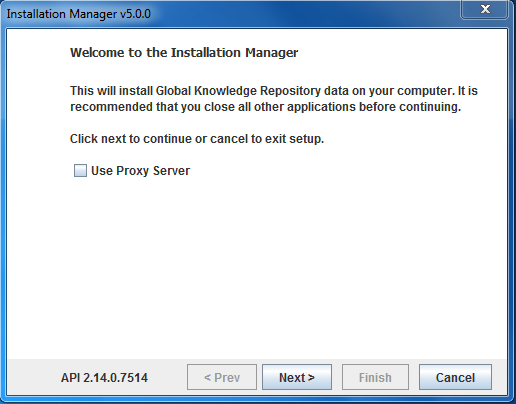
The first screen displays the version of the Local API currently installed, at the lower left corner.
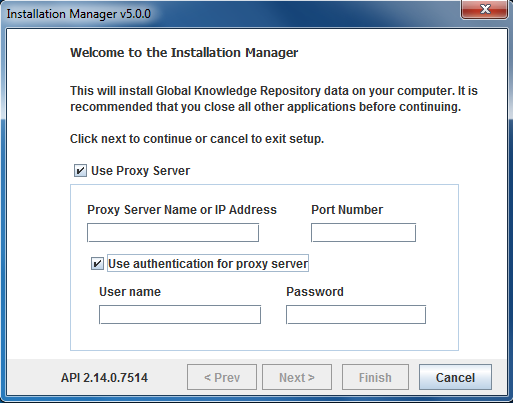
 If a proxy server is used, the checkbox "Use Proxy Server" needs to be checked and the Proxy server name and port need to be entered as shown below. If the proxy server needs authentication, the checkbox "Use authentication for proxy server" should also be checked and the user name and password need to be provided.
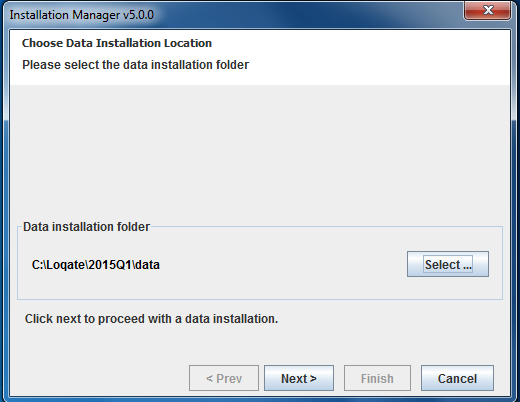
 The first step is to provide the installation folder.
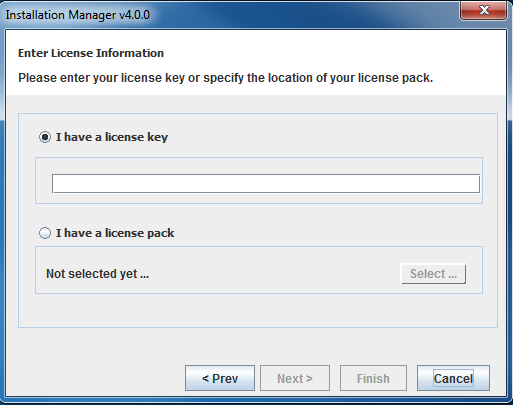
 The next step is to provide a license key. When a license key is entered, Install Manager will communicate with `licensing.loqate.com`. If the license key is valid, the server will return the corresponding license pack to Install Manager and then Install Manager will write the license pack to the installation folder.
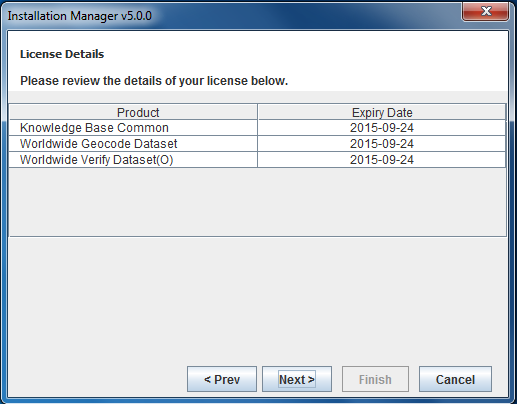
 Once the license pack is saved to disk, Install Manager will display the contents of the license for reference.
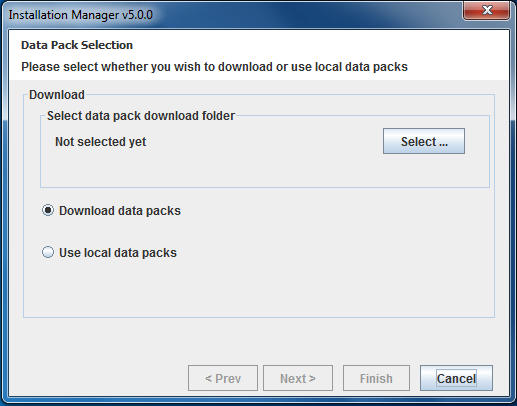
 There are 2 options available for downloading as shown below. One can either just download the data packs or install the data packs that are already downloaded to the local machine.
 After a valid option is selected, Install Manager will communicate with `licensing.loqate.com` and fetch details about the latest available licensed data packs that are compatible with the Local API version that is currently installed. The details of available data packs to install will be shown next. In the case a user selects an existing data folder for installation, it will show newer data packs available to download and install. The release date of the available data packs will also be displayed. The user can select the required data packs from this screen by checking the checkboxes next to each product.
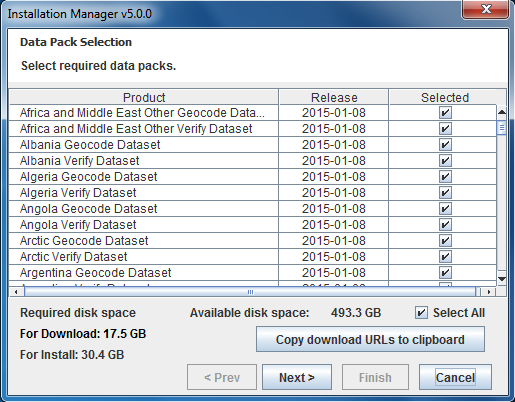 If the user selects the download option, Install Manager will download the data packs.
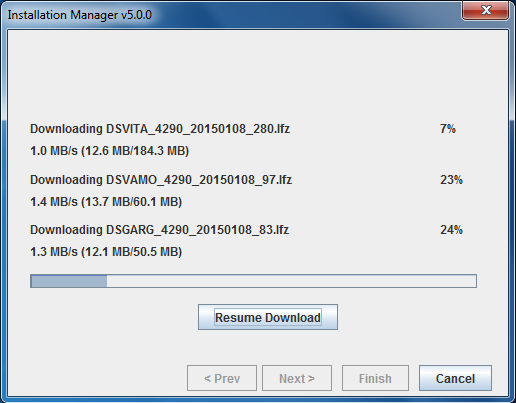
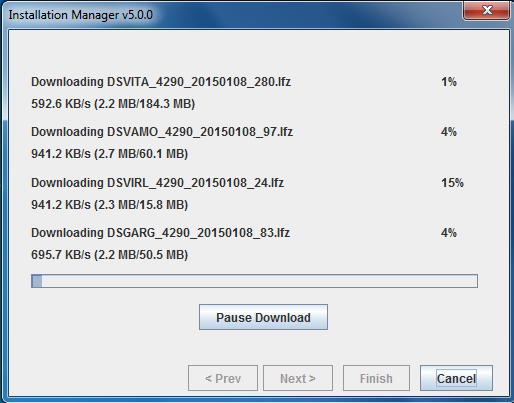 The download can be paused and resumed at any point. If the "Pause Download" button is pressed the UI will change as follows:
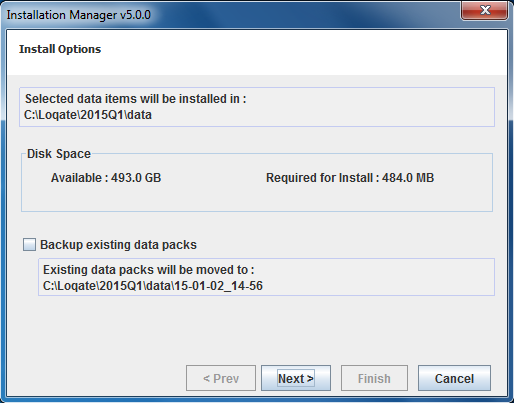
 The next screen displays location where the downloaded data packs will be installed.
 Next, the user is shown the Loqate data license agreement.
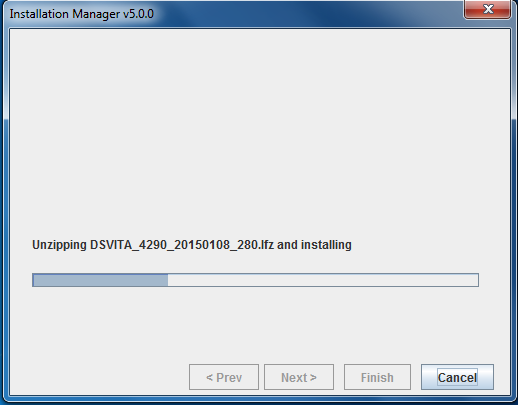
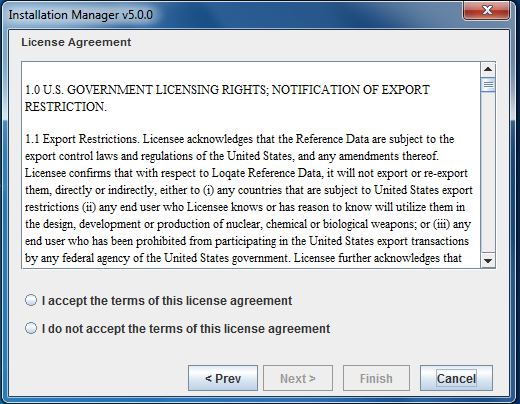 Once the user accepts the license agreement, the next screen will proceed to installing the selected data packs.
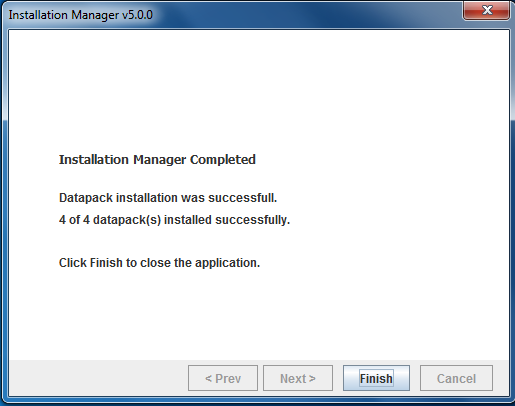
 Finally, Install Manager will complete the installation as shown.
 ## Command Line Interface Mode
Install Manager can be started in command line mode by providing the command line option: `mode=commandline`. Command line mode is the default in Linux and UNIX platforms. On Linux/Unix platforms, Install Manager can be launched by running the script `InstallManager.sh`. The first screen displays the version of the Local API currently installed.
## Command Line Interface Mode
Install Manager can be started in command line mode by providing the command line option: `mode=commandline`. Command line mode is the default in Linux and UNIX platforms. On Linux/Unix platforms, Install Manager can be launched by running the script `InstallManager.sh`. The first screen displays the version of the Local API currently installed.
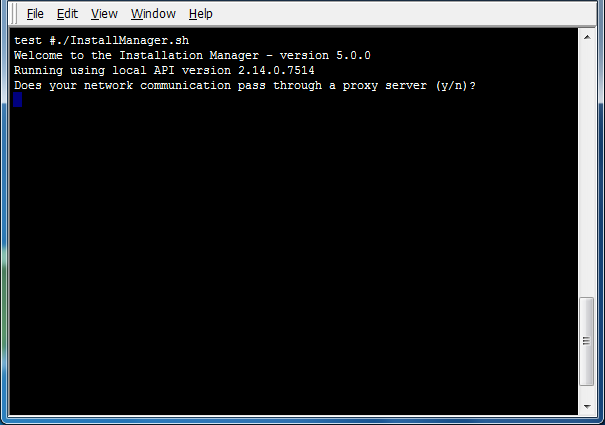 If a proxy server is used, the Proxy server name and port need to be entered as shown below. If the proxy server needs authentication, the user name and password need to be provided.
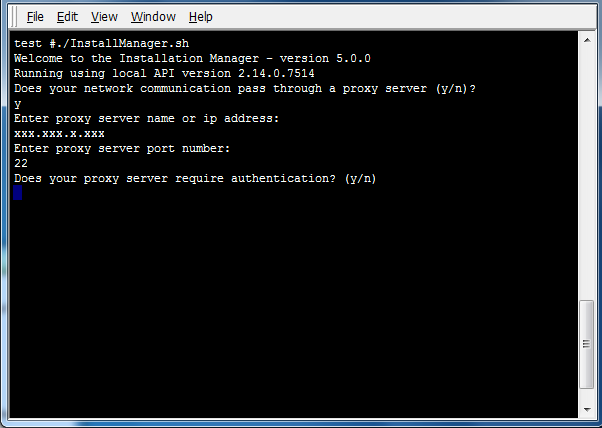
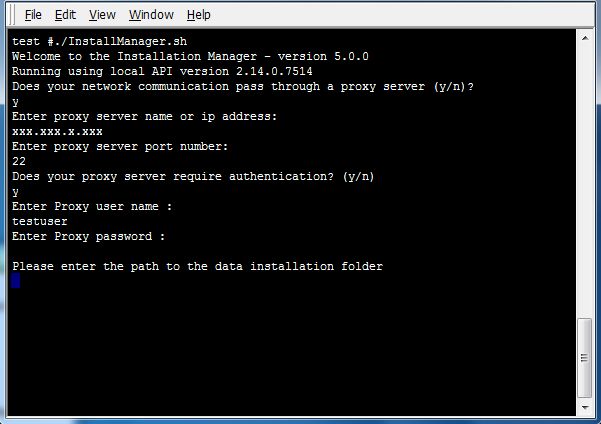 The first step is to provide the installation folder. If the user selects an empty folder the installation will proceed as a fresh installation of the data packs. If the user selects an existing data folder, the installer will proceed as an update installation.
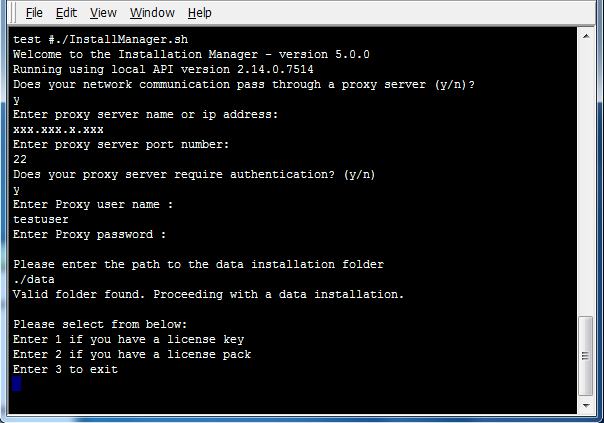 The next step is to provide a license key. When a license key is entered, Install Manager will communicate with `licensing.loqate.com`. If the license key is valid, the server will return the corresponding license pack to Install Manager and then Install Manager will write the license pack to the installation folder.
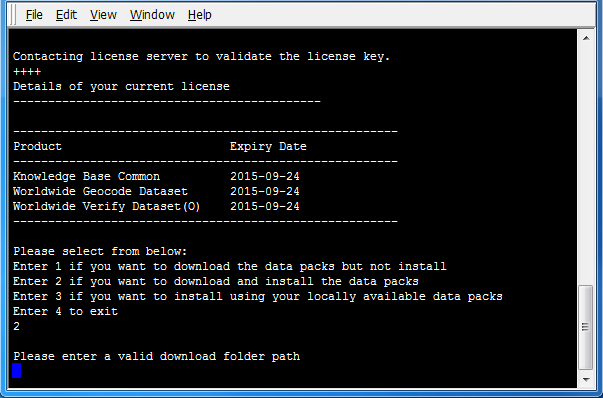 One can either just download the data packs or install the data packs that are already downloaded to the local machine.
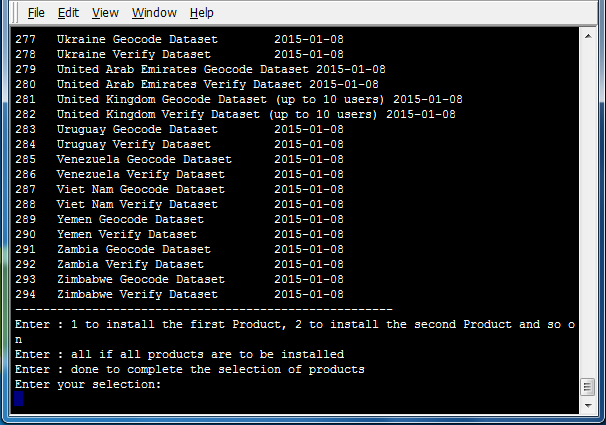
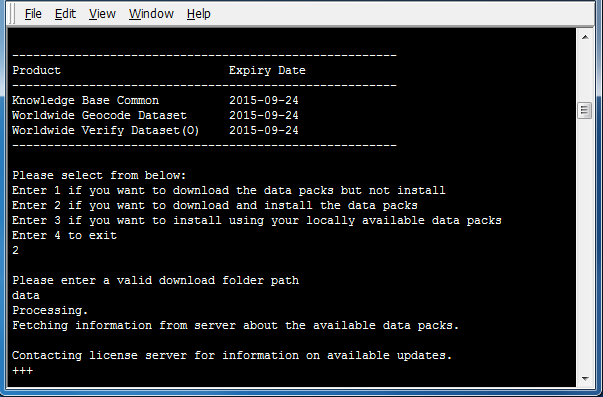 When the list of available data packs is shown, enter `all` to select all data packs. Alternatively, if only certain products are desired for installation, enter the numbers next to those products, ending the selection by entering `done`.
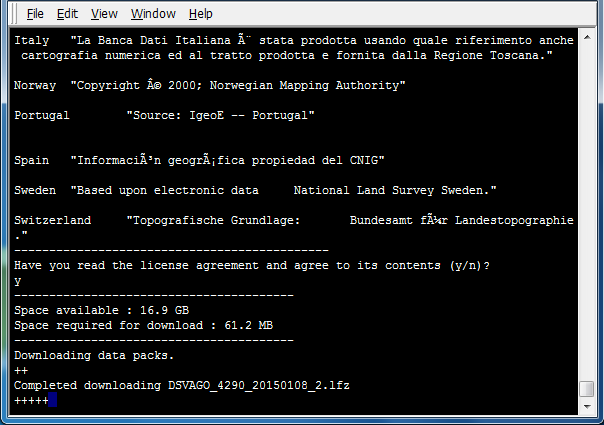
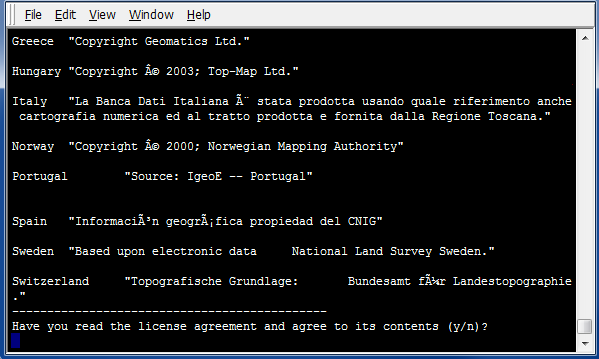
 The screen below shows the Loqate License agreement.
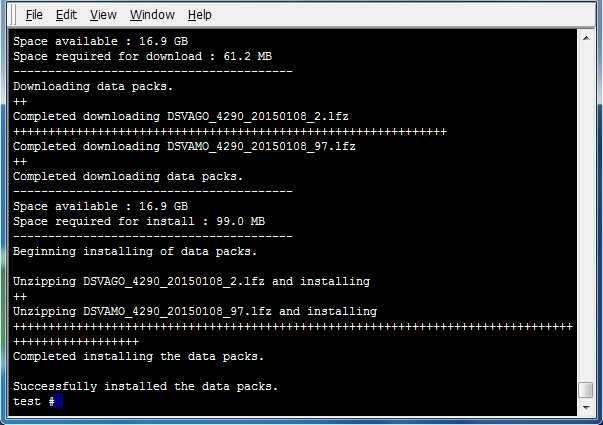
 Depending on the choice made for download and installation, Install Manager may download data packs from `download.loqate.com`.