> ## Documentation Index
> Fetch the complete documentation index at: https://docs.loqate.com/llms.txt
> Use this file to discover all available pages before exploring further.
# About the Shopify Plus Integration
> See how the Loqate Shopify Plus Integration looks in practice
In this guide we will explain what the Loqate Shopify Plus Integration does and how it works in practice.
If you want to skip straight to the installation steps, you can find those here:
Check out the Loqate Shopify Plus Integration Guide
The Loqate Shopify Plus Integration, downloadable via the Shopify App Store, allows you to quickly and easily add Loqate's
address validation services to the checkout page of your Shopify Plus site.
With some or all of these services enabled you can provide your customers with type-ahead lookup functionality for
address fields (reducing both input times and the likelihood of errors), verification for manually-entered addresses,
and email address validation.
We've created this integration to take advantage of Shopify's new Checkout Extensibility functionality,
which means you can leverage Shopify's latest technology as part of the Loqate app.
Installing and setting up this Shopify Plus app is a straightforward process, and in this guide we will take you through
the handful of quick steps required to get up and running. You don't need any in-depth technical knowledge in order to install this app,
just familiarity with Shopify Plus.
## Available services
The Loqate Shopify Plus Integration includes three Loqate services:
* **Address Capture**, which provides a type-ahead solution for address input
* **Address Verify**, which ensures the accuracy of manually-entered addresses
* **Email Validation**, which ensures the accuracy of customer email addresses
NOTE: these services are designed to work together, but each one can be enabled/disabled individually.
This is active by default once you've installed and configured the app, adding type-ahead address lookup functionality to the
Address field on your checkout form and allowing customers to start typing in their address and then select the relevant one
from a list of suggested addresses.
Address Capture is available in both the Delivery address and Billing address sections.
If enabled, Address Verify adds an extra layer of verification by checking addresses against our reference data using a process of
correction, standardisation, formatting, enhancement and verification. If appropriate, it can then offer an alternative which
the customer can either agree to use, or dismiss in favour of their original entry.
Address Verify is available on the Thank You page, post-checkout, and can make changes to customers' delivery addresses
(it doesn't affect the billing address).
NOTE: Address Verify can also be added to the Delivery address section of the checkout page, but this option is now
deprecated and will be removed in time.
This feature if enabled, allows you to validate customer email addresses as they're being entered.
If a customer enters an invalid email address, they will be notified that the email address can't be validated and won't be able to
proceed through the checkout form until they enter a valid email address.
Otherwise, customers who enter valid email addresses will not have their experience interrupted or visually altered in any way.
Learn more about the [Email Validation Service](/api-reference/email-validation/individual)
for additonal information.
***
## Shopify Integration In use
See the Loqate Shopify app in use after it has been installed and configured.
### Video overview
Here's what this looks like, using an example checkout page:
### Example screenshots
We've also put together some screenshots of how it looks on an example checkout page, to give you a sense of what to expect.
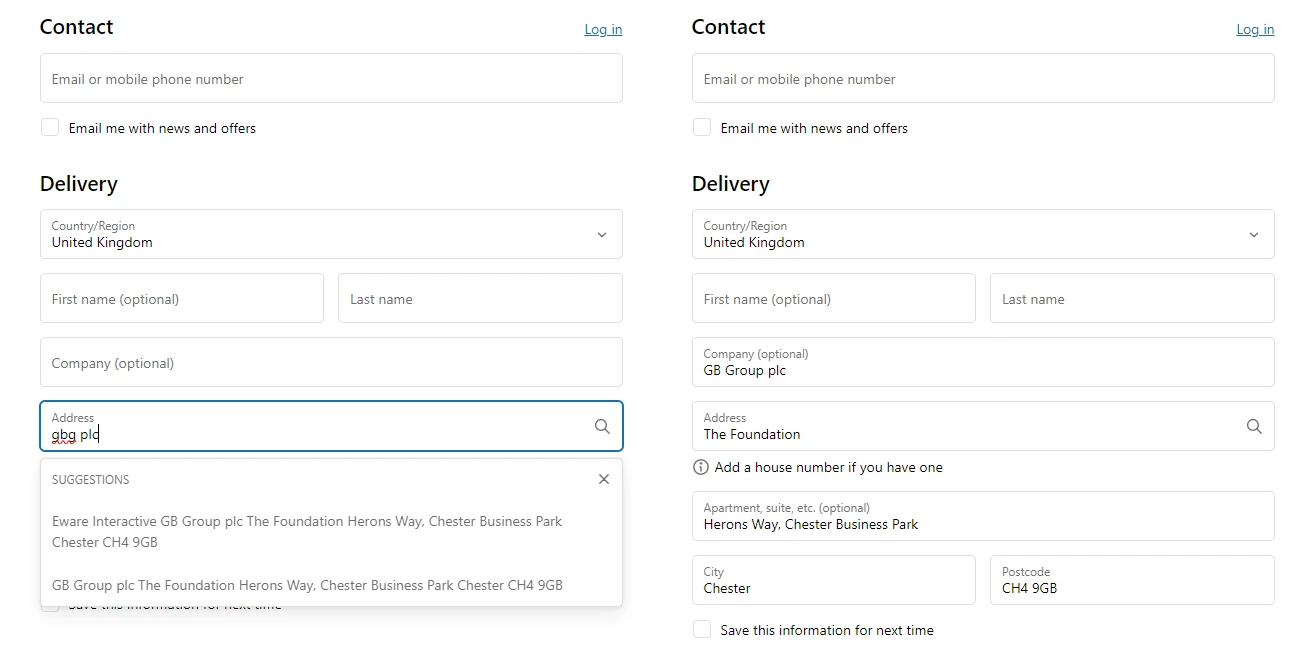
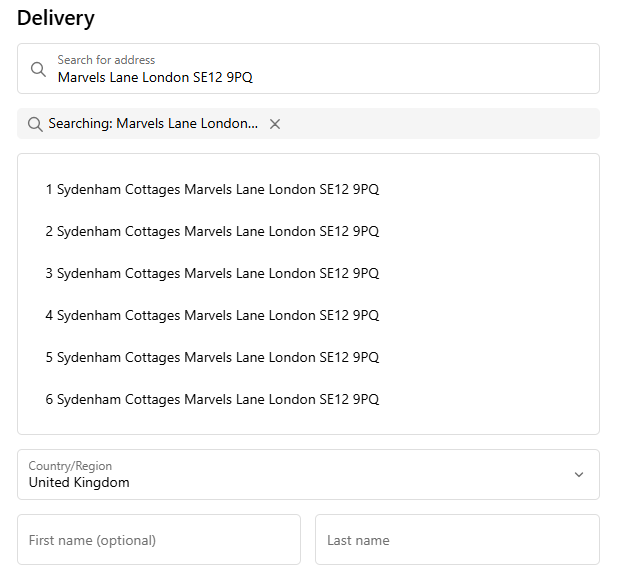
Here's what it looks like during an address lookup and after an address has been selected in the Delivery address section:
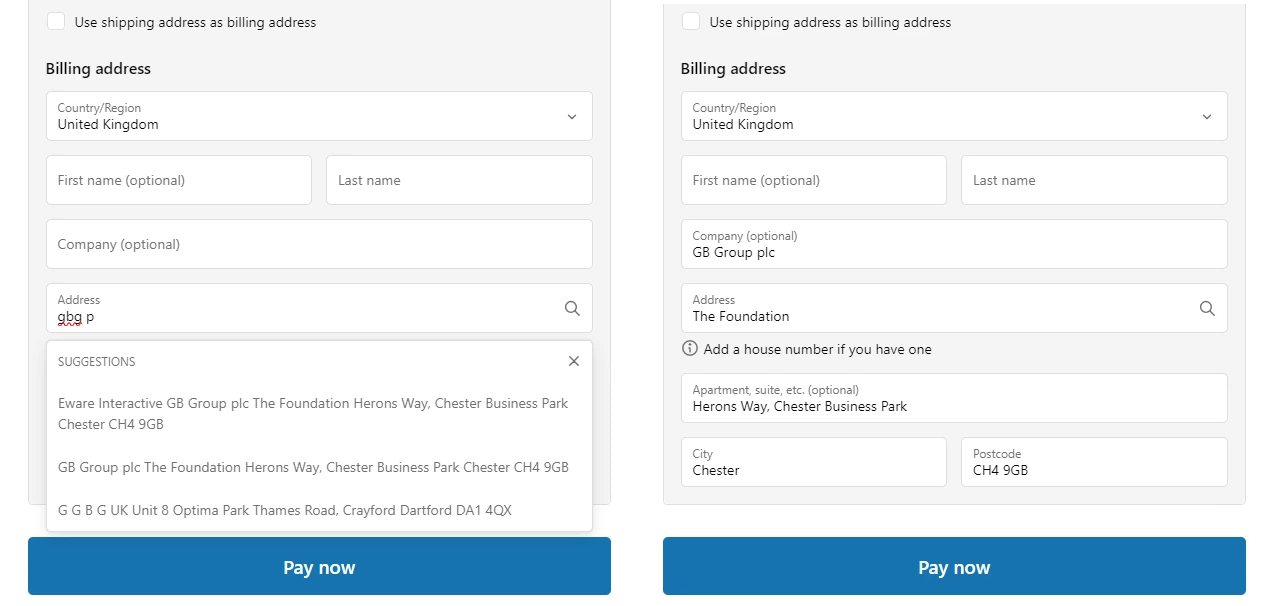
And here's what it looks like during an address lookup and after an address has been selected in the Billing address section:
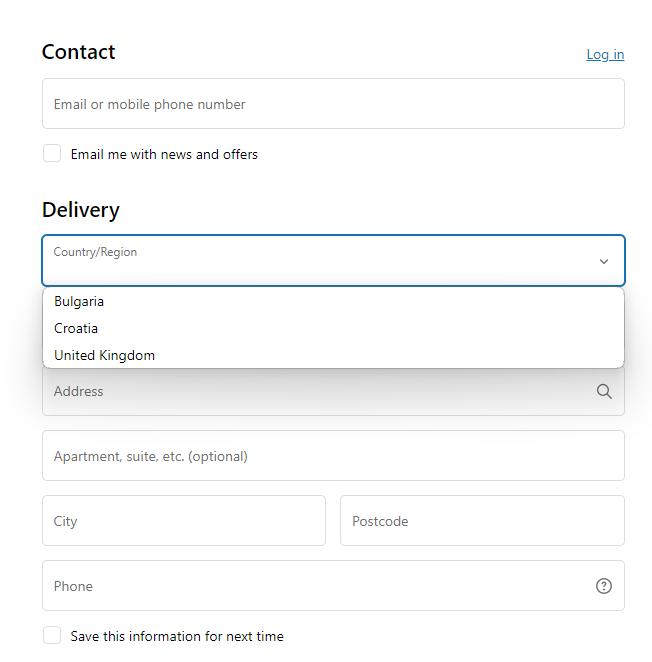
Note: the countries listed in the **Country/Region** dropdown list are tied directly to what you've set in the 'Shipping and delivery'
section of your Shopify store settings. Therefore, if you only ship to certain countries, only those countries will appear in the dropdown.
If a customer enters an address outside of those countries, Address Capture will not be able to return suggestions in the country they're
looking for and Address Verify will not recognise the inputted address (see the Address Verify section below).
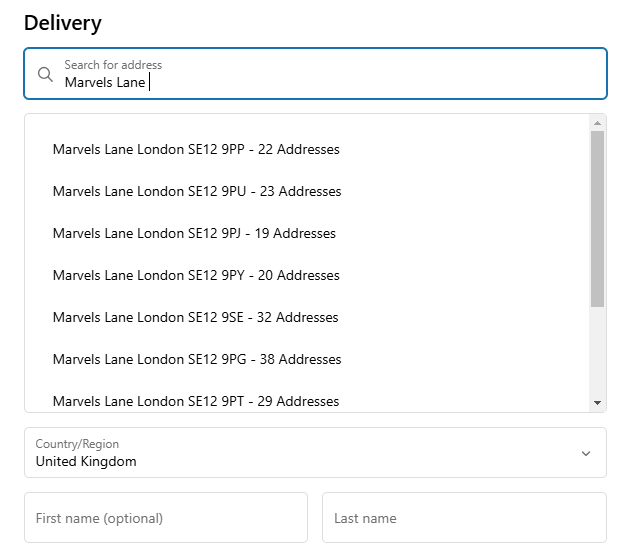
**NOTE:** We now recommend using the new Custom Capture Search Input for an improved search experience when finding sub-buildings.
If you have enabled Address Verify, this functionality will trigger on the Thank You page after a customer has confirmed an order.
Immediately after the Thank You page loads, a message will appear saying "Please wait while we verify your address..."
This message will adjust depending on the results that Address Verify can return, with three main possibilities
* No changes required
* Alternative address found
* Address not validated
### No changes required
If the customer's address is successfully verified with no changes required, the Address Verify message will change to
"Your shipping address has been verified!"
### Alternative address found
If, however, Address Verify finds an alternative address to suggest, the message will instead change to say
"We've found an alternate address", and give the customer the option of either applying or declining the proposed changes
If the customer clicks **Apply changes**, the message will change to say "Your shipping address has been updated"
**NOTE:** customers will not see the updated address reflected on the Thank You page, however if you check the Orders section
of your Shopify Plus account and find the transaction in question, you'll see that the shipping address has been updated.
For example, here you can see that the billing address remains as it was originally inputted, but the shipping address has been
corrected by Address Verify
You can also see evidence of the update in the order's timeline
Not all customers will choose to use the alternative addresses offered by Address Verify, however.
If a customer chooses to ignore the suggestion, they will instead see a message which says "Your shipping address was not updated"
### Address not validated
Lastly, if an address is sufficiently low quality that Address Verify can't validate it,
the customer will instead see a message reading "Your shipping address could not be validated, your order will still be processed."
If you have enabled Email Validation, this functionality will trigger when a customer enters an invalid email address.
Here's what that will look like:
When a customer enters a valid email address, this notification will disappear and they will be able to proceed through the checkout.
***
 And here's what it looks like during an address lookup and after an address has been selected in the Billing address section:
 Note: the countries listed in the **Country/Region** dropdown list are tied directly to what you've set in the 'Shipping and delivery'
section of your Shopify store settings. Therefore, if you only ship to certain countries, only those countries will appear in the dropdown.
If a customer enters an address outside of those countries, Address Capture will not be able to return suggestions in the country they're
looking for and Address Verify will not recognise the inputted address (see the Address Verify section below).
Note: the countries listed in the **Country/Region** dropdown list are tied directly to what you've set in the 'Shipping and delivery'
section of your Shopify store settings. Therefore, if you only ship to certain countries, only those countries will appear in the dropdown.
If a customer enters an address outside of those countries, Address Capture will not be able to return suggestions in the country they're
looking for and Address Verify will not recognise the inputted address (see the Address Verify section below).
 **NOTE:** We now recommend using the new Custom Capture Search Input for an improved search experience when finding sub-buildings.
 You can also see evidence of the update in the order's timeline
Not all customers will choose to use the alternative addresses offered by Address Verify, however.
If a customer chooses to ignore the suggestion, they will instead see a message which says "Your shipping address was not updated"
### Address not validated
Lastly, if an address is sufficiently low quality that Address Verify can't validate it,
the customer will instead see a message reading "Your shipping address could not be validated, your order will still be processed."
You can also see evidence of the update in the order's timeline
Not all customers will choose to use the alternative addresses offered by Address Verify, however.
If a customer chooses to ignore the suggestion, they will instead see a message which says "Your shipping address was not updated"
### Address not validated
Lastly, if an address is sufficiently low quality that Address Verify can't validate it,
the customer will instead see a message reading "Your shipping address could not be validated, your order will still be processed."
 When a customer enters a valid email address, this notification will disappear and they will be able to proceed through the checkout.