> ## Documentation Index
> Fetch the complete documentation index at: https://docs.loqate.com/llms.txt
> Use this file to discover all available pages before exploring further.
# BigCommerce Integration Guide for Address Validation Setup
> Add Loqate address lookup to BigCommerce checkout. Install via Script Manager with generated mappings for standard BigCommerce fields.
Before you start, make sure you have a Loqate account. If you don’t already have one, you will need to
[sign up](https://account.loqate.com/Register/).
## Setup
In order to set up Loqate for BigCommerce, please follow these steps:
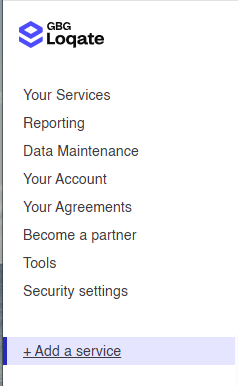
* In your Loqate account select **+ Add a service**:
 * Then select **Start setup**.
 * You will be presented with two options: Website or App. Select **App**, tick **BigCommerce** from the suggested options below,
and hit **Next**.
* You will be presented with two options: Website or App. Select **App**, tick **BigCommerce** from the suggested options below,
and hit **Next**.
 * Here you will be presented with a code snippet. Copy this, as you'll need to use it later.
* Click the "Generate my mappings" button at the bottom of the page. This will generate mappings that match the standard
BigCommerce field layout.
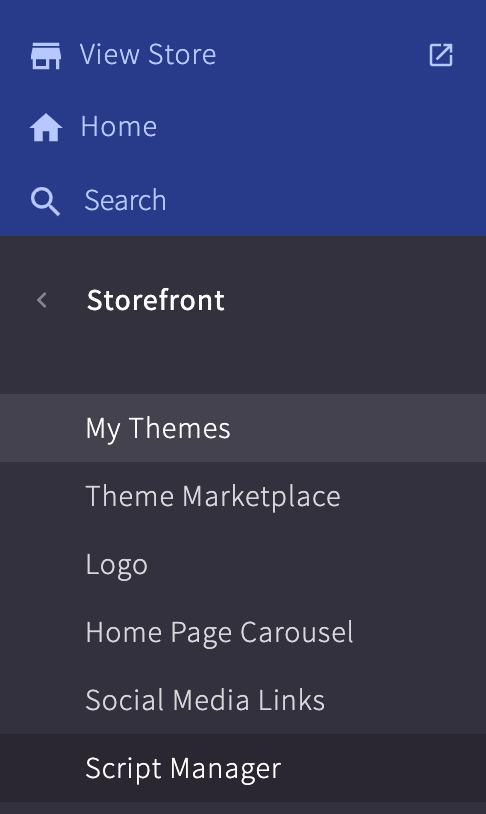
* Next, log in to BigCommerce and go to **Script Manager**. You can access this by clicking Sidebar > Storefront > Script Manager.
* Here you will be presented with a code snippet. Copy this, as you'll need to use it later.
* Click the "Generate my mappings" button at the bottom of the page. This will generate mappings that match the standard
BigCommerce field layout.
* Next, log in to BigCommerce and go to **Script Manager**. You can access this by clicking Sidebar > Storefront > Script Manager.
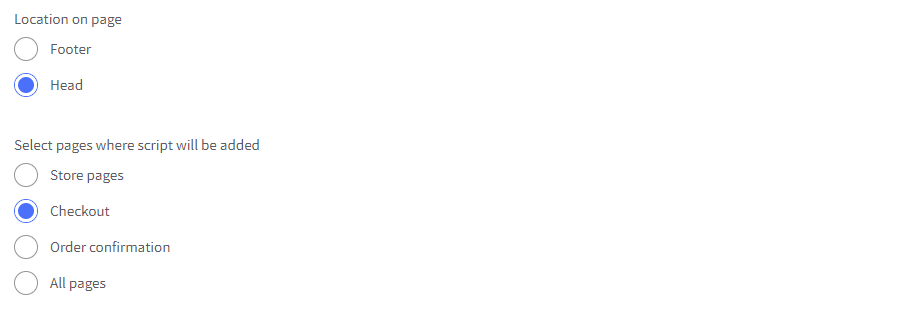
 * Once in this section you want to add Script Library, then fill out the checkboxes as follows:
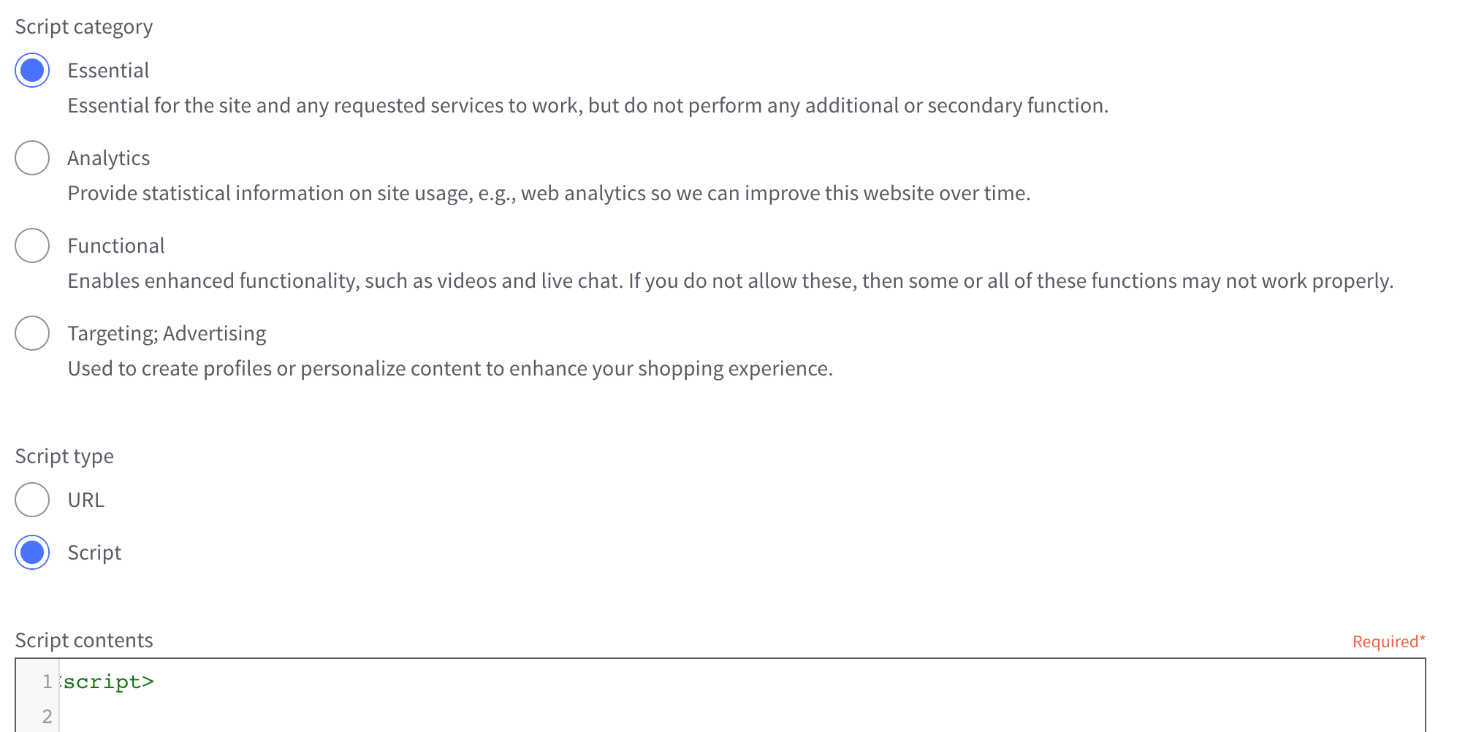 * In the **Script Contents** area, paste the code snippet you generated earlier.
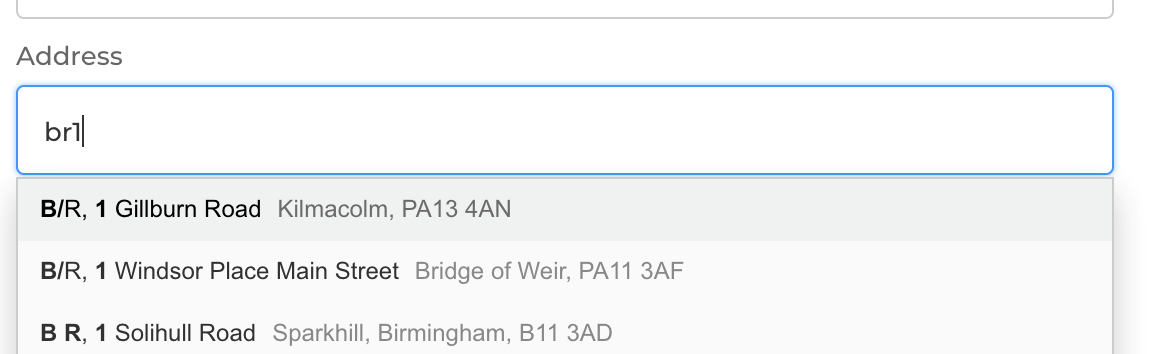
* Once this has been done the Loqate functionality will work as follows:
* In the **Script Contents** area, paste the code snippet you generated earlier.
* Once this has been done the Loqate functionality will work as follows:
 ## Troubleshooting
If you require any help, please do not hesitate to get in touch with our [support teams](https://www.loqate.com/resources/support/).
## Troubleshooting
If you require any help, please do not hesitate to get in touch with our [support teams](https://www.loqate.com/resources/support/).