> ## Documentation Index
> Fetch the complete documentation index at: https://docs.loqate.com/llms.txt
> Use this file to discover all available pages before exploring further.
# Reapit Setup Guide
> Install Loqate Email and Phone Validation in Reapit. Create API keys, download the apps from Reapit AppMarket and add your keys.
Address Capture is available by default to all Loqate customers using Reapit, however Email Validation and Phone Validation are also available as optional add-ons.
In this guide we will take you through the simple steps to install and set up Email and Phone Validation in Reapit.
You don't need any in-depth technical knowledge to install this app, just familiarity with Reapit.
For an overview of the services and why to use them, see the [Reapit integration overview](/integrations/reapit).
## Setup Video
## Installation
The installation steps are as follows, and we recommend working through the guide in this order:
* [Create new API keys](#create-new-api-keys)
* [Download apps](#download-apps-from-reapit-appmarket)
* [Add API keys to the apps](#add-api-keys-to-app-configuration)
### Create new API keys
As an existing user you will already have a Loqate API key for use with Address Capture. We recommend creating a new API key for each of Email and Phone Validation,
to keep everything clear (assuming you want to use both services – you can use just one of them if you would prefer).
Our [Creating API Keys page](/loqate-basics/create-an-api-key) takes you through the steps of creating new API keys – follow the instructions for creating generic keys,
repeating the process for each service. Make sure you name each key to note which one is for Email Validation, and which is for Phone Validation.
If you need to refer back to your API keys, you can find them on the [Your Services page](https://account.loqate.com/account/#/Dashboard/) of your Loqate account.
### Download apps from Reapit AppMarket
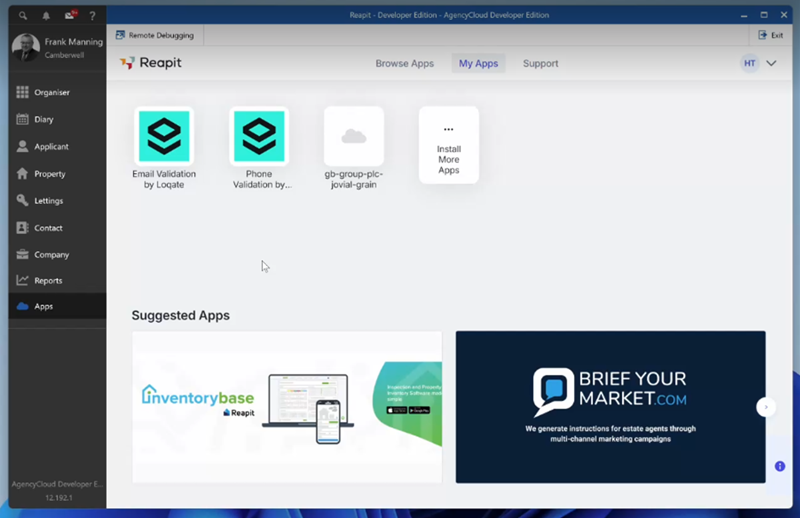
Head over to the Reapit AppMarket and search for ‘Loqate’. Both the Email Validation and Phone Validation apps should appear as below:
Click into each app and download them. Once downloaded, they will appear as options within all phone and/or email widgets across Reapit, including applicant pages.
### Add API keys to app configuration
The final step is to add a new API key to each app.
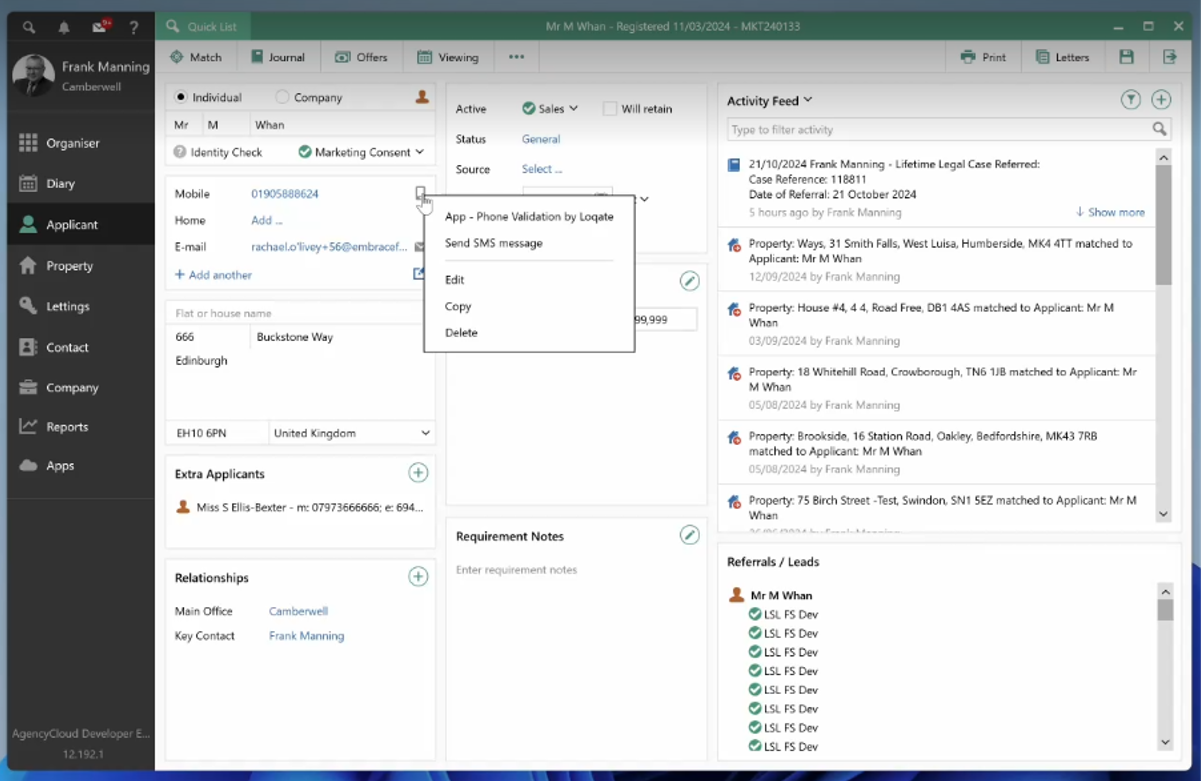
You can open an app within Reapit using the phone or email widgets. Using Phone Validation as an example, click on the phone icon and then select the
**App – Phone validation by Loqate** option.
This will open the app in a pop-up window - click **Configuration** on the left-hand side tab, then enter the new API key from your Loqate account.
Save and close the app, then repeat this step for the second app.
We recommend logging out of Reapit and logging back in, to refresh the platform. With that done, Email Validation and Phone Validation will be available to use.
 Click into each app and download them. Once downloaded, they will appear as options within all phone and/or email widgets across Reapit, including applicant pages.
### Add API keys to app configuration
The final step is to add a new API key to each app.
You can open an app within Reapit using the phone or email widgets. Using Phone Validation as an example, click on the phone icon and then select the
**App – Phone validation by Loqate** option.
Click into each app and download them. Once downloaded, they will appear as options within all phone and/or email widgets across Reapit, including applicant pages.
### Add API keys to app configuration
The final step is to add a new API key to each app.
You can open an app within Reapit using the phone or email widgets. Using Phone Validation as an example, click on the phone icon and then select the
**App – Phone validation by Loqate** option.
 This will open the app in a pop-up window - click **Configuration** on the left-hand side tab, then enter the new API key from your Loqate account.
Save and close the app, then repeat this step for the second app.
We recommend logging out of Reapit and logging back in, to refresh the platform. With that done, Email Validation and Phone Validation will be available to use.
This will open the app in a pop-up window - click **Configuration** on the left-hand side tab, then enter the new API key from your Loqate account.
Save and close the app, then repeat this step for the second app.
We recommend logging out of Reapit and logging back in, to refresh the platform. With that done, Email Validation and Phone Validation will be available to use.