> ## Documentation Index
> Fetch the complete documentation index at: https://docs.loqate.com/llms.txt
> Use this file to discover all available pages before exploring further.
# Address Capture Integration Best Practices
> Guidelines for Address Capture integration. Optimize API request flow, design effective search interfaces, and configure proper address field mapping.
There are three main things to consider when planning an API integration with
Capture, to help ensure you get the most out of it, and therefore the best return
on investment:
* The function of the integration itself
* The look and feel of the visual elements
* The mapping of the Loqate data back to your application/database
The better you optimise all these points, the more likely your end users are to
quickly and intuitively find the address they are searching for. This, in turn,
helps you and your organisation to maximise your customer journey KPIs.
This best practice guide covers all three points, offering suggestions
for how to make the most of your integration along with visual examples from a
range of sample integrations.
## Integration Functionality
Capture is designed to be a simple to use API with a straightforward logical API
flow, however there are some nuances to the consumption of the API that are
important to get right. Ensuring you're making the most of all the functionality
will help set up your end users for success.
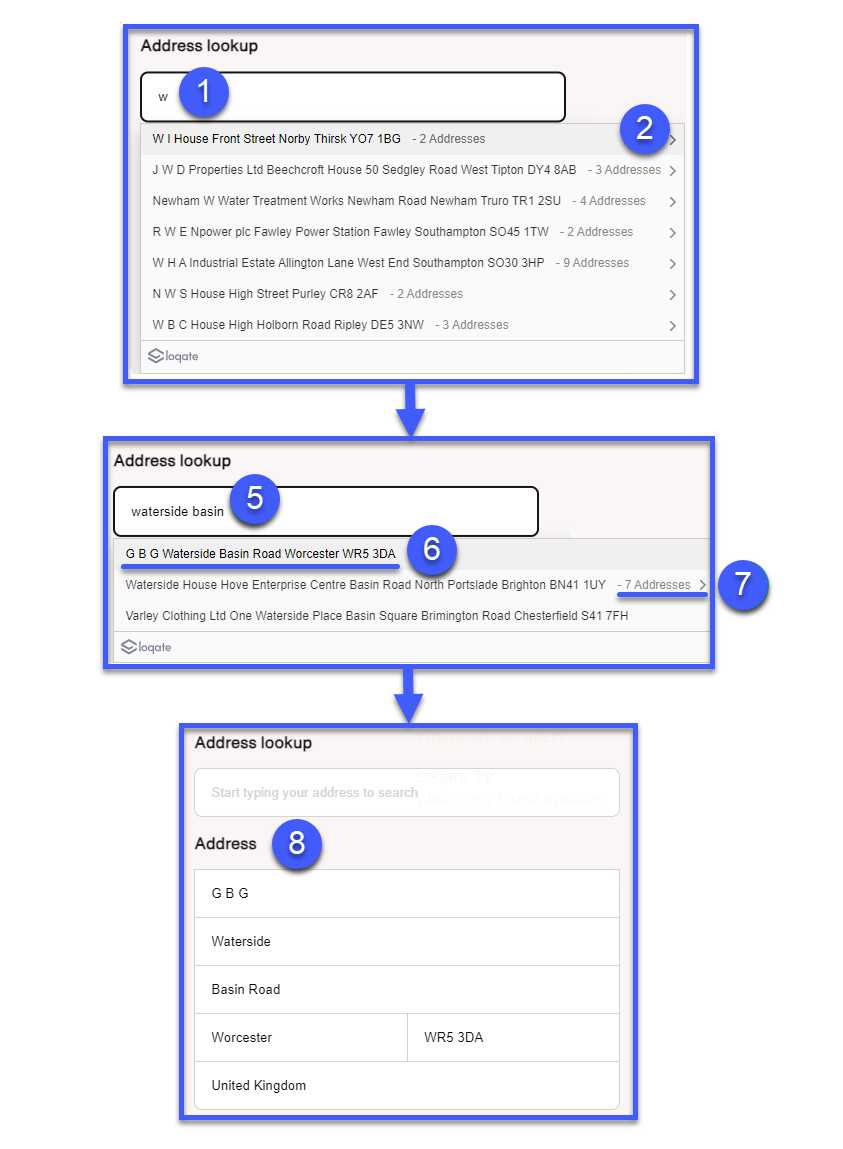
The basic flow of a Capture interaction works like this:
**1.** The user starts to type into an address lookup field
**2.** Trigger a Capture FIND request, passing the search terms to the **Text**
parameter
**3.** Present an initial set of results to the user, making sure both the
**Text** and **Description** fields are displayed
**4.** If the first result is what the user is looking for then they can select
that, but usually it won't be
**5.** As the user makes additional keystrokes, continue to submit FIND requests
and present each new set of results to the user
**6.** When the user sees a result they're looking for, they can click on it to
select the address or container
**7.** If the result that the user selects is a container (i.e. **Type =
Container**), pass the ID into the **Container** parameter and present the
addresses within that container as a new set of results
**8.** When the user selects an address (i.e. **Type** = **Address**) perform a
RETRIEVE request, passing the ID to the **ID** parameter, and then populate the
address fields on the form with the relevant data
 ### Endpoints
Capture uses two endpoints:
* **Find:** used to narrow down a possible list of addresses
* **Retrieve:** used to retrieve a fully formatted address
See our [Address Capture APIs page](/api-reference/address-capture/apis) for
more details of these endpoints.
### Additional considerations
* Make sure you display both the Text and the Description fields from the Find
response to the user, as both will contain information necessary for an
effective interaction
* When performing a container drill-down, make sure you pass the ID of the
selected record into a Find request within the container parameter
* It is possible for there to be containers within containers
* Populate the Origin parameter with the end user's IP address where possible
and appropriate. This will help bias the results towards the user's location
in countries where the Location Biasing functionality is available
* Populate the Countries parameter where possible. This will help keep search
results country-specific, and optimise the performance of the algorithm
***
## Look and Feel
A key part of successfully utilising Capture is making sure the visual elements
of the integration help support the end users' optimal usage - good user
experience helps users' interaction with the search feel intuitive and
streamlined. Some key elements to consider include:
* [Single search field](#1-single-search-field)
* [Result layout](#2-result-layout)
* [Browser auto-fill](#3-browser-auto-fill)
* [Utilise highlights](#4-utilise-highlights)
* [Visual container indicator](#5-visual-container-indicator)
* [Number of results](#6-number-of-results)
* [Mobile performance](#7-mobile-performance)
### Endpoints
Capture uses two endpoints:
* **Find:** used to narrow down a possible list of addresses
* **Retrieve:** used to retrieve a fully formatted address
See our [Address Capture APIs page](/api-reference/address-capture/apis) for
more details of these endpoints.
### Additional considerations
* Make sure you display both the Text and the Description fields from the Find
response to the user, as both will contain information necessary for an
effective interaction
* When performing a container drill-down, make sure you pass the ID of the
selected record into a Find request within the container parameter
* It is possible for there to be containers within containers
* Populate the Origin parameter with the end user's IP address where possible
and appropriate. This will help bias the results towards the user's location
in countries where the Location Biasing functionality is available
* Populate the Countries parameter where possible. This will help keep search
results country-specific, and optimise the performance of the algorithm
***
## Look and Feel
A key part of successfully utilising Capture is making sure the visual elements
of the integration help support the end users' optimal usage - good user
experience helps users' interaction with the search feel intuitive and
streamlined. Some key elements to consider include:
* [Single search field](#1-single-search-field)
* [Result layout](#2-result-layout)
* [Browser auto-fill](#3-browser-auto-fill)
* [Utilise highlights](#4-utilise-highlights)
* [Visual container indicator](#5-visual-container-indicator)
* [Number of results](#6-number-of-results)
* [Mobile performance](#7-mobile-performance)
 ### 1. Single search field
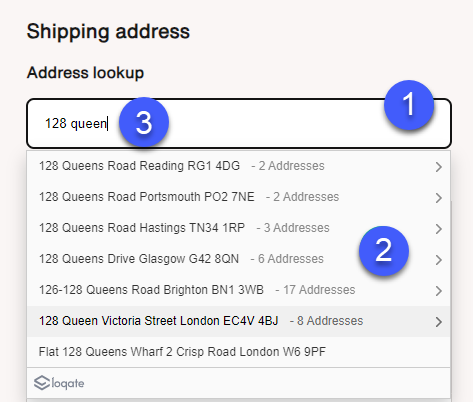
It's recommended to hide your address fields at first. Displaying just a single
Address Lookup text box on the form can help indicate to the user what is
expected of them.
### 2. Result layout
Consider the spacing of the information within each result, as well as vertical
space between each result. You want to make sure everything is legible, and laid
out in a way that the information is easily to digest for the user. Ensure the
text is of an appropriate font and colour, and contrasts well with the
background and wider website. If there is a lengthy list of results, can the
user scroll to get down to the one they need?
### 3. Browser auto-fill
Most browsers will enable users to auto-fill forms without having to manually
enter information. Consider whether you want to allow this, and if so, how that
interaction would work alongside the address lookup. If you allow users to fill
in their address via their browsers auto-fill, how will you validate that
address is correct?
### 4. Utilise highlights
The Find API provides a highlights field in the response, which helps you
identify characters within the result that match to the input search term the
user has provided. These characters can be **emboldened** to better
enable to identify the information they are searching for. [More information on parsing the highlights field can be found here.](/api-reference/address-capture/highlight)
### 5. Visual container indicator
Some results will be distinct addresses, while others may be a container - i.e.
a group of addresses. A visual indicator of a container can help the user
understand that if they click this result, they are going to be presented with a
further set of results. A simple chevron serves well for this purpose.
### 1. Single search field
It's recommended to hide your address fields at first. Displaying just a single
Address Lookup text box on the form can help indicate to the user what is
expected of them.
### 2. Result layout
Consider the spacing of the information within each result, as well as vertical
space between each result. You want to make sure everything is legible, and laid
out in a way that the information is easily to digest for the user. Ensure the
text is of an appropriate font and colour, and contrasts well with the
background and wider website. If there is a lengthy list of results, can the
user scroll to get down to the one they need?
### 3. Browser auto-fill
Most browsers will enable users to auto-fill forms without having to manually
enter information. Consider whether you want to allow this, and if so, how that
interaction would work alongside the address lookup. If you allow users to fill
in their address via their browsers auto-fill, how will you validate that
address is correct?
### 4. Utilise highlights
The Find API provides a highlights field in the response, which helps you
identify characters within the result that match to the input search term the
user has provided. These characters can be **emboldened** to better
enable to identify the information they are searching for. [More information on parsing the highlights field can be found here.](/api-reference/address-capture/highlight)
### 5. Visual container indicator
Some results will be distinct addresses, while others may be a container - i.e.
a group of addresses. A visual indicator of a container can help the user
understand that if they click this result, they are going to be presented with a
further set of results. A simple chevron serves well for this purpose.
 ### 6. Number of results
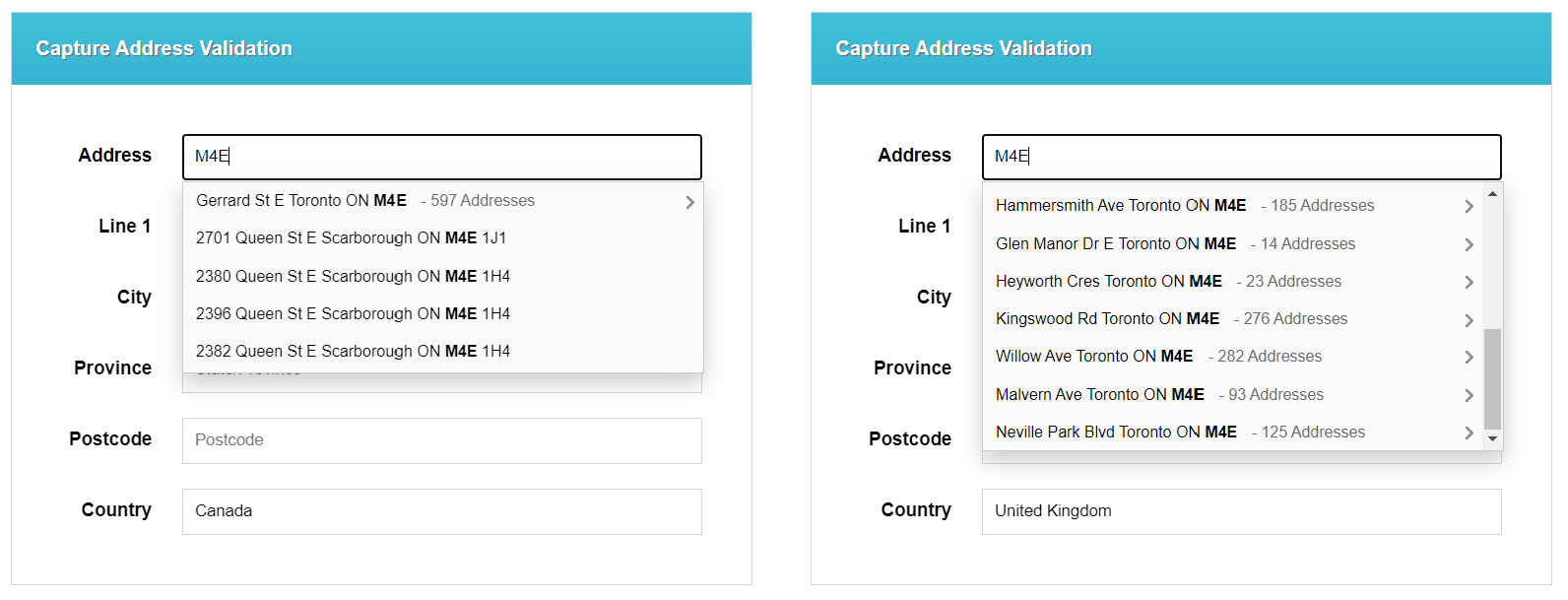
How many results you return to your users will have an impact on their
experience:
* A small number of results will mean users need to enter more of the address
before the result they are looking for is displayed on the page
* A large list of results might cause the result they want to be hard to spot
amongst all the others
7-10 results displayed is an optimal balance. You can manage this via the Limit
parameter within the API calls. To the above here you can see the difference
between returning a small list of results and a larger list, in a sample
integration.
### 7. Mobile performance
It's important that your integration behaves well on mobile, as that is likely
how many your users will be interacting with it. Optimise the results for
smaller screens, ensuring results are easily legible, whilst trying to retain as
many results on screen at once as possible. Too few results displayed at once
can make it harder for users to locate the address they're looking for.
***
## Address Data Mapping
Once the correct address has been retrieved, you want to make sure you're
mapping all of the necessary response fields back to your form fields. That way
you're making sure that the data going into your database is comprehensive and
valid. You also want to make sure that your address form and backend systems
support the length and type of data that is likely to be returned within the
countries and territories that you operate in.
### Address lines
Each country has different address conventions, with differing numbers of
address elements, and therefore different numbers (and lengths) of required
address fields. To ensure coverage across many countries, the following form fields are suggested as a minimum:
* Company (if appropriate)
* Line1
* Line2
* Line3
* City
* Postal code
* State/Province (if appropriate)
* Country (if appropriate)
#### Company addresses
If your customers may be filling in commercial as well as residential addresses,
then the organisation name needs to be accounted for within the layout of your
form. Two common options for this are either:
* A separate field that can be filled in when appropriate
* As part of the address lines (in which case, ensure you have enough space
remaining for the rest of the address information)
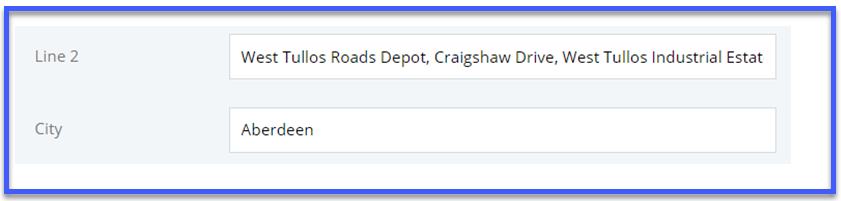
#### Field length
A lot of applications are limited on field length either by back-end systems or
shipping providers, and some countries' address information can include
significantly longer address elements than others. Where possible, it's recommended to set the length of address line fields to 120+ characters.
### 6. Number of results
How many results you return to your users will have an impact on their
experience:
* A small number of results will mean users need to enter more of the address
before the result they are looking for is displayed on the page
* A large list of results might cause the result they want to be hard to spot
amongst all the others
7-10 results displayed is an optimal balance. You can manage this via the Limit
parameter within the API calls. To the above here you can see the difference
between returning a small list of results and a larger list, in a sample
integration.
### 7. Mobile performance
It's important that your integration behaves well on mobile, as that is likely
how many your users will be interacting with it. Optimise the results for
smaller screens, ensuring results are easily legible, whilst trying to retain as
many results on screen at once as possible. Too few results displayed at once
can make it harder for users to locate the address they're looking for.
***
## Address Data Mapping
Once the correct address has been retrieved, you want to make sure you're
mapping all of the necessary response fields back to your form fields. That way
you're making sure that the data going into your database is comprehensive and
valid. You also want to make sure that your address form and backend systems
support the length and type of data that is likely to be returned within the
countries and territories that you operate in.
### Address lines
Each country has different address conventions, with differing numbers of
address elements, and therefore different numbers (and lengths) of required
address fields. To ensure coverage across many countries, the following form fields are suggested as a minimum:
* Company (if appropriate)
* Line1
* Line2
* Line3
* City
* Postal code
* State/Province (if appropriate)
* Country (if appropriate)
#### Company addresses
If your customers may be filling in commercial as well as residential addresses,
then the organisation name needs to be accounted for within the layout of your
form. Two common options for this are either:
* A separate field that can be filled in when appropriate
* As part of the address lines (in which case, ensure you have enough space
remaining for the rest of the address information)
#### Field length
A lot of applications are limited on field length either by back-end systems or
shipping providers, and some countries' address information can include
significantly longer address elements than others. Where possible, it's recommended to set the length of address line fields to 120+ characters.
 #### Character sets
Different countries utilise distinctive character sets when writing their
addresses. Depending on the territories you are operating within, you should
consider what characters are likely to get populated into your address fields,
and how these can be best stored in line with any limitations you have within
your databases. The Loqate Capture product supports the entire UTF8 character
set.
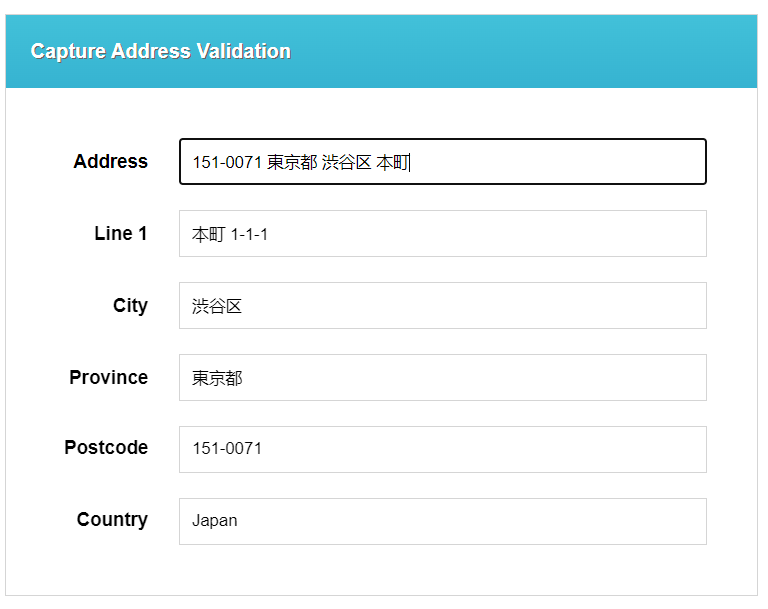
#### Character sets
Different countries utilise distinctive character sets when writing their
addresses. Depending on the territories you are operating within, you should
consider what characters are likely to get populated into your address fields,
and how these can be best stored in line with any limitations you have within
your databases. The Loqate Capture product supports the entire UTF8 character
set.