> ## Documentation Index
> Fetch the complete documentation index at: https://docs.loqate.com/llms.txt
> Use this file to discover all available pages before exploring further.
# How to Obtain Version Information
The Loqate release (e.g., 2013Q4) is made up of an API version and a set of data files.
## Finding the API Version
### Method 1: Call `getVersion()`
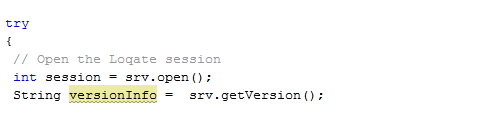
You can call the `getVersion()` method from the API using String variable to store the API version information.
 ### Method 2: Lookup on Released Page
Lookup on [released](/release-information/)
### Method 3: Run `lqtBatch -v`
Run `lqtBatch -v`
### Method 2: Lookup on Released Page
Lookup on [released](/release-information/)
### Method 3: Run `lqtBatch -v`
Run `lqtBatch -v`
 ### Method 4: Check `version.txt` File
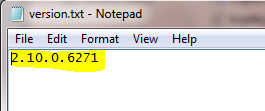
Since 2014Q1.0 release, Loqate Software Installation directory contains a file called `version.txt`. Examine the contents of the `version.txt` file.
### Method 4: Check `version.txt` File
Since 2014Q1.0 release, Loqate Software Installation directory contains a file called `version.txt`. Examine the contents of the `version.txt` file.
 ### Method 5: Run Install Manager
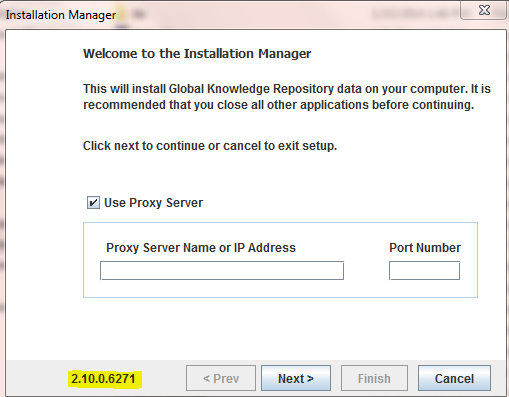
Run Install Manager, look at the bottom left of the window or at the command line
### Method 5: Run Install Manager
Run Install Manager, look at the bottom left of the window or at the command line
 ## Finding the Data Files Version
### Method 1: Run Install Manager
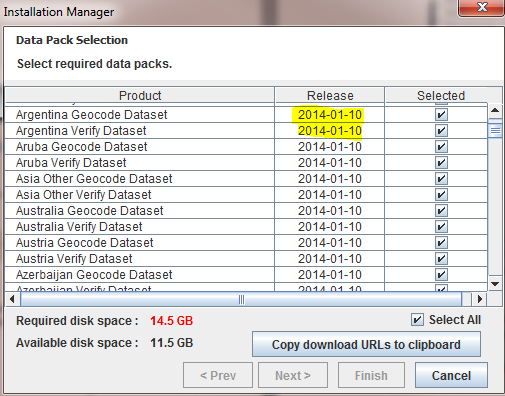
Run Install Manager and check the date of the currently installed datapacks.
## Finding the Data Files Version
### Method 1: Run Install Manager
Run Install Manager and check the date of the currently installed datapacks.
 ### Method 2: Check `_manifest.properties` Files
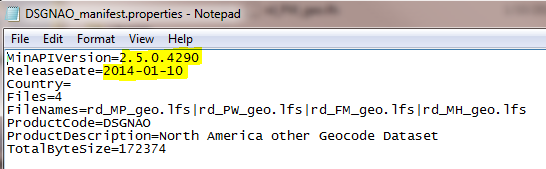
Each datapack has their own manifest and data files. Check in the `_manifest.properties` files in the data folder, and look for the `ReleaseDate` entry. The release date and version corresponds to the files associated with that datapack.
### Method 2: Check `_manifest.properties` Files
Each datapack has their own manifest and data files. Check in the `_manifest.properties` files in the data folder, and look for the `ReleaseDate` entry. The release date and version corresponds to the files associated with that datapack.
 ### Method 3: Run `lqtBatch` Without Input File
Run `lqtBatch` without an input file, e.g., `lqtBatch -d /opt/loqate/data` and examine the `File.Build.*` timestamp on each file
### Method 3: Run `lqtBatch` Without Input File
Run `lqtBatch` without an input file, e.g., `lqtBatch -d /opt/loqate/data` and examine the `File.Build.*` timestamp on each file
 ### Method 4: Run the GKRInfo Tool
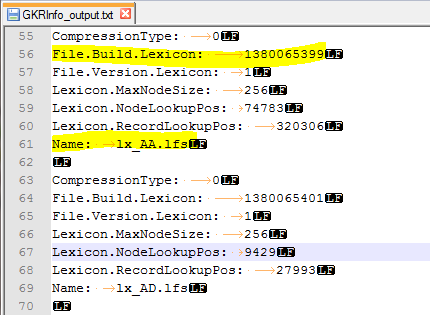
Run the GKRInfo tool in the API and examine the `File.Build.*` timestamp on each file
### Method 4: Run the GKRInfo Tool
Run the GKRInfo tool in the API and examine the `File.Build.*` timestamp on each file
 ### Method 5: Examine Downloaded LFZ Files
Examine the downloaded `.lfz` files, which have the format `___.lfz`
### Method 5: Examine Downloaded LFZ Files
Examine the downloaded `.lfz` files, which have the format `___.lfz`
