> ## Documentation Index
> Fetch the complete documentation index at: https://docs.loqate.com/llms.txt
> Use this file to discover all available pages before exploring further.

# USA CASS2 Engine

## Our CASS2 Engine

The latest CASS2 Cycle-O engine replaces our old CASS™ engine which was retired as of 31st July 2023.

All existing customers have now migrated to the CASS2 engine.

<Warning>
  All customers using CASS2 must download the 2023 Q3.1 Loqate API and CASS2 together using the latest install manager. This is to ensure continuity of the CASS2 service due to a combined bug fix.
</Warning>

## Platform Availability

CASS2 is currently available for the following platforms:

* Windows 32
* Windows 64
* Linux 64
* AIX 64 \*
* SystemZ \*

\*Details on downloading these platform engines are available via your Customer Success Manager

## Release Information

Please run Install Manager to check for the latest version of CASS2 (both library and data).

Data files used by CASS2 expire at the end of the third month of release. For example, CASS2 data released in February expires at the end of Apr. You will see this represented in Loqate with an expiration date e.g September 1st (i.e. good until the end of August). This was a USPS driven change in October of 2022. (reference: [https://about.usps.com/postal-bulletin/2022/pb22603/html/updt\_003.htm](https://about.usps.com/postal-bulletin/2022/pb22603/html/updt_003.htm)).

Please be aware that the CASS™ dataset expiration dates are set by the postal authority. Please ensure that you have the latest library and data installed to avoid loss of service through these products.

## CASS2 Installation

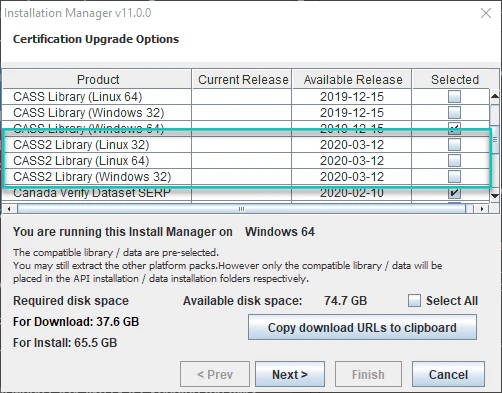
Your license key will determine if the new CASS2 is available to download and install from Install Manager.

If CASS2 is available, the product names will be presented as "CASS2…".

<Frame caption="">
  <img src="https://mintcdn.com/loqate/bZ7DNdFBXsoQxP4T/images/45740218-cassv2-screenshot.png?fit=max&auto=format&n=bZ7DNdFBXsoQxP4T&q=85&s=9f8c5d32a6dea6a0609d586efd5606c4" width="502" height="393" data-path="images/45740218-cassv2-screenshot.png" />
</Frame>

<Warning>
  **Important note for Windows users:** Please ensure Loqate is installed outside of the Program Files folder. Even if you enable read/write permissions while inside Program Files, permissions issues may persist.
</Warning>

### Checking if CASS2 is Installed

There are two methods to check if CASS2 is installed, as follows.

**Method 1: Command Line**

Run the following code from the command line:

```bash theme={null}
# Windows
lqtBatch.exe –d <data directory>

# Linux
./lqtBatch –d <data directory>
```

If CASS2 is active, your console will display the following (you may need to search for "CASS2" if the console output is very long):

```
—————————————-
Record : 1590
CASS API Expires : 2023-03-14
CASS API Status : Active
CASS Data Expires : 2023-02-28
CASS Data Status : Active
CASS certified software version : 20.15.00.N
DataBase Date : 2022-12-01
DataBase mdVersion : 17236
Name : CASS2Info
—————————————-
```

**Note:** Your 'Record' number will contain a value.

The API status, database date, and expiration dates are displayed.

**Method 2: lqtDemo.exe (Windows only)**

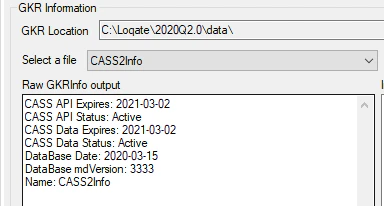
Open `lqtDemo.exe`, click on the tab labelled "GKR", click "Browse" and select your Loqate Data folder. When the file drop-down has populated, scroll through the list and select "CASS2Info". The expiry date will be on the output.

<Frame caption="">
  <img src="https://mintcdn.com/loqate/bZ7DNdFBXsoQxP4T/images/52c40122-cassinfo-gkrtab-apr2020.png?fit=max&auto=format&n=bZ7DNdFBXsoQxP4T&q=85&s=d6114858f89013b79b63c4c9447adcda" width="384" height="206" data-path="images/52c40122-cassinfo-gkrtab-apr2020.png" />
</Frame>

## Updating CASS2

As with the previous CASS engine, when you get to the certified data pack selection screen in Install Manager you will need to select **both the library and USA Verify Datasets for CASS2**.

## Running CASS2 From the Command Line

The same parameters and requests are used in both older and new CASS engines. To use `lqtBatch` with CASS2, pass "cass2" as the parameter for the `-p` option, for example:

```bash theme={null}
lqtBatch … -p cass2
```

[More information about how to use the command line can be found here.](/support/batch-processor/)

### Sample Command Line Script (Windows)

```bash theme={null}
lqtBatch.exe -d <data directory> -p cass2 -r PS3553 -i <input file> -o <output file> -oh -fs off -oi -of DPVConfirmedIndicator|DPVFootnotes|ResultsString|PrimaryAddressLine|SecondaryAddressLine|DeliveryAddress|DeliveryAddress1|DeliveryAddress2|DeliveryAddress3|SubBuilding|Premise|Thoroughfare|BoxType|BoxNumber|PrivateMailbox|Locality|DependentLocality|SubAdministrativeArea|AdministrativeArea|PostalCode|PostalCodePrimary|PostalCodeSecondary|AutoZoneIndicator|Finance|CarrierRoute|CMRAIndicator|CongressionalDistrict|DefaultFlag|DeliveryPointBarCode|eLOTCode|eLOTNumber|EWSFlag|FalsePositiveIndicator|FIPSCountyCode|LACSLinkCode|LACSLinkIndicator|LACSStatus|NoStatIndicator|RecordType|ResidentialDelivery|SUITELinkFootnote|VacantIndicator|Organization|ReturnCode|ParsedGarbage
```

## Other Ways to Run CASS2

CASS processing is also available through the `lqtDemo.exe` application (Windows only), and via any of the supported Loqate APIs. Please note both the demo GUI and the APIs run processes per record, so it will not be possible to generate PS Form 3553.

To request CASS through one of the APIs, please set the process to Verify, and set the `CertifiedCountryList` server option to "USA".

For Windows users, please ensure to load the respective DLL from the CASS folder where Loqate is installed. With the 2020Q2.0 release, the DLL is found in `\LoqateDirectory\LIBCUAS2WIN64\mdAddr.dll`

The release notes will always provide the name and location of this dependency.

## Input Record Requirements

CASS2 input is a little stricter in how to enter an address. We recommend the following:

* Sub-building, Premise, Thoroughfare, and any other delivery point information should be completed in `Address1` and optionally `Address2`.
* Locality, Administrative Area, and ZIP should either be entered into their respective component fields, or together in `Address2` or `Address3`, but not both. If `Address2` is used this way, then `Address3` should be blank.

For example, the address **1737 N 1st St #590, San Jose, CA 95112**, may be entered in one of the following recommended ways:

**Option 1:**

* `Address1`: 1737 N 1st St #590
* `Address2`: San Jose, CA 95112

**Option 2:**

* `Address1`: 1737 N 1st St #590
* `Address3`: San Jose, CA 95112

**Option 3:**

* `Address1`: 1737 N 1st St
* `Address2`: #590
* `Address3`: San Jose, CA 95112

**Option 4:**

* `Address1`: 1737 N 1st St #590
* `Locality`: San Jose
* `AdministrativeArea`: CA
* `PostalCode`: 95112

### Puerto Rico Only

For best results, the urbanization name should be passed in the dedicated input field `DependentLocality`. When more than one address is found for a given ZIP Code™, the dependent locality (urbanization) is used to discriminate between these.

As with all address verification functionality, the process will be more successful when the input data is consistent, correct, and complete.

## False Positive Address Detection

In order to detect conditions where the inputs submitted to the Loqate engine appear to be the result of artificial manufacture, and not legitimately obtained addresses, a set of artificially-manufactured reference addresses are included within the USPS data.

An input which provides one of these "false addresses" will trigger the false positive handling. When false positive handling is triggered, the address that hit the trigger and all subsequent addresses will return the special code `AS18` in the `ResultsString` output field and all subsequent addresses will no longer DPV verify.

Please contact Loqate technical support if this happens.

Some details from the trigger record that were detected are written to a false positive file and you may be asked to provide this file by technical support.

By default, this file is created in the same directory as the CASS2 datafiles.

The false positive file will have a name that begins "DPVFALSE" followed by a series of numbers (e.g. `DPVFALSE2021051210031`), which are:

* The year in four digits
* The month in two digits
* The day in two digits
* The hour in two digits
* The minute in two digits
* A final digit which is used to make the file unique across multiple threads

You can control the directory where the False Positive file is created by adding a Server Option of `CassFalsePosDir='path_to_use'`. For example, `CassFalsePosDir='C:\temp'` or `CassFalsePosDir='/opt/temp'`.

## PS Form 3553 Generation

To request the PS Form 3553 report file, add the following parameter to the batch command script:

```bash theme={null}
-r PS3553
```

End users (mailers) will send PS Form 3553 to USPS along with the mailing list to receive a discount. The batch process will create a file named `PS3553_report.txt`.

Under section A1 on the PS3553 form, the Certified Company Name should be entered as LOQATE, and the CASS™ Certified Software Name & Version should be LOQATE ENGINE \[version number] (e.g. 20.15.00.N).

## Output Fields

A CASS2 processed record will match the existing output structure of the previous engine, with a few exceptions described below. An output record will contain the following:

### Standard Primary Verify Fields

All [standard primary Verify fields](/field-descriptions/addfields/), with the following exceptions and changes:

* `AVC` and `AQI` fields will be populated by a default value "Z00-Z00-Z0-000" and "Z" respectively. Instead, customers should use the CASS output fields `DPVConfirmedIndicator`, `DPVFootnotes`, and `ResultsString` to determine the quality and accuracy of processed record.
* `PostBoxType` and `PostBoxNumber` will not be populated or used. The respective values will be mapped to `Thoroughfare` and `Premise`.

### CASS Fields

All [CASS fields](/support/cass2-output-field-descriptions/), with the following exceptions and changes:

* `PMBNumber` and `PMBType` values will be appended to the `PrimaryAddressLine` and `SecondaryAddressLine` fields.
* USPS supports both long and short names for Locality. By default, the CASS2 engine will return long names for Locality. The `CassCityAbbreviation` server option can be used to return the abbreviated versions of Locality names that are over 13 characters in length.

## Server Options

**`CassAvcEnable`** = Yes|No (Default: No)

The default will Z00-00-00-000 (AVC) and Z (AQI), but computing the report values can be forced. Please note that if returned, these fields may not accurately reflect the changes made in the record during the CASS process.

**`CassUrbFirst`** = Yes|No (Default: No)

This specifies the Urbanization location on the address lines output (Puerto Rico only). The default will put the value after the address lines(s) with premise, thoroughfare, and sub-building.

**`CassZipFields`** = Yes|No (Default: No)

Populate "Finance" and "AutoZoneIndicator". If these fields are desired, customers will experience a moderate performance degradation (up to 20%).

**`CassCityAbbreviation`** = Yes|No (Default: No)

If a Locality name is longer than 13 characters, this option can be used to return the official, short version. Both short and long versions are valid according to CASS.

**`CassFalsePosDir`** = 'path\_to\_use'

Allows you to control the directory where the False Positive file is created. For example: `CassFalsePosDir='C:\temp'` or `CassFalsePosDir='/opt/temp'`.

## More Information & Support

Please contact your channel manager or technical account manager for any questions regarding the installation and evaluation of our CASS2 product.