> ## Documentation Index
> Fetch the complete documentation index at: https://docs.loqate.com/llms.txt
> Use this file to discover all available pages before exploring further.
# Installation Guide (Windows)
## Download the Loqate Engine
Registered users will receive email notifications when a new Loqate engine becomes available. The FTP server location and credentials will be included with the email notifications. Please contact the support team: [support@loqate.com](mailto:support@loqate.com) for new user FTP login information or to register as a new user.
Before you install, please make sure you have all [prerequisites](/getting-started/platforms/) installed for the chosen platform.
Once inside the FTP server location, please select a folder from the list of available releases to download; then proceed to the next section "Install the Loqate Engine".
## Install the Loqate Engine
The installation of the Loqate engine is quite simple and it is described in the product release notes. The installation process is shown in detail in this section. For detailed information regarding installation, please refer to [installers](/installers/).
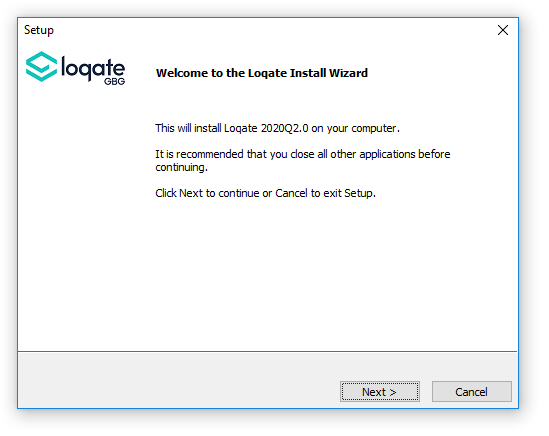
In the installation directory, select the `setup.exe` file or the `setup_x64.exe` (for 32-bit systems or 64-bit systems, respectively). Double clicking on that file will launch the Loqate Install Wizard, as shown below.
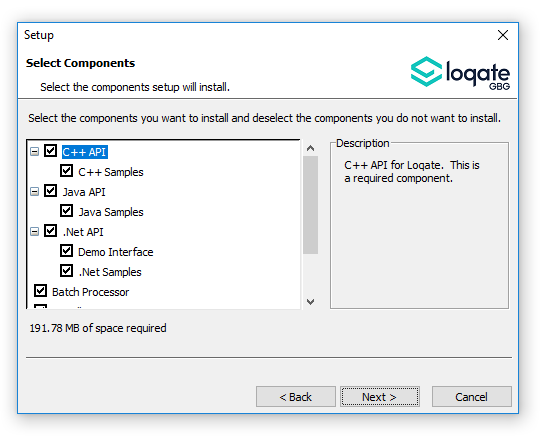
 After selecting "Next", the "Select Components" panel will be displayed, as shown in the figure below. To use the Loqate engine with Java both the "C++ API" and the "Java API" options should be selected. Then click "Next".
 Next the user must select the installation directory for the Loqate engine. Select the default installation directory `C:\Loqate`.
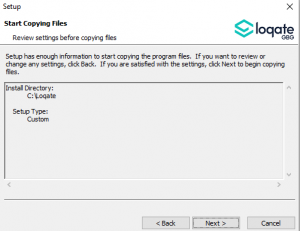
The "Start Copying Files" panel will be displayed. Please click "Next".
Next the user must select the installation directory for the Loqate engine. Select the default installation directory `C:\Loqate`.
The "Start Copying Files" panel will be displayed. Please click "Next".
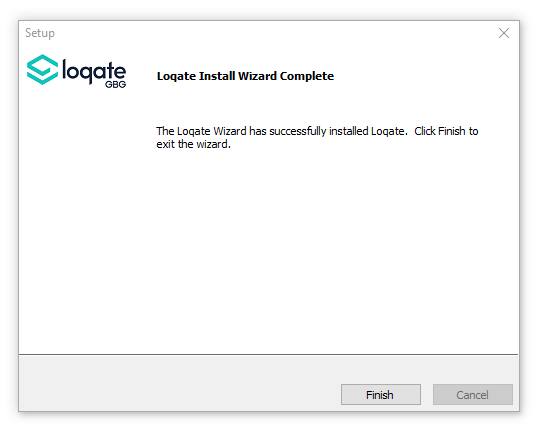
 The API installation is then complete. To install reference data and certified products, please refer to the [data installation guide](/installers/data-installation-and-update-process/).
 ## Sample US Data
When selecting the components to install (see Components Panel screenshot) there will be an option to install US Sample Data. This will populate the data directory with a `rd_US_vfy.lfs` file that can be used for functionality and implementation testing if full datasets are not yet accessible or available.
General information about the dataset can be found on the GKR tab on the `lqtDemo.exe` application.
## Sample US Data
When selecting the components to install (see Components Panel screenshot) there will be an option to install US Sample Data. This will populate the data directory with a `rd_US_vfy.lfs` file that can be used for functionality and implementation testing if full datasets are not yet accessible or available.
General information about the dataset can be found on the GKR tab on the `lqtDemo.exe` application.
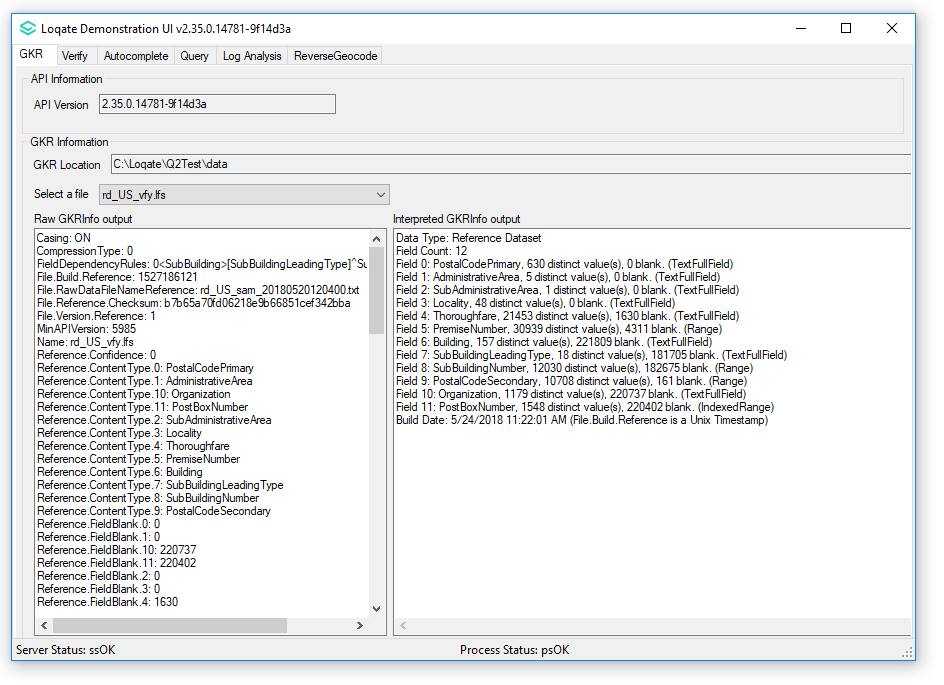 The specification for the US Sample Data is as follows:
* The build date for the data may change, and can be found on the "Interpreted GKRInfo output" panel. Look for the field named `Build Date` (US format). Any new addresses (i.e. new houses or apartment complexes) built after the reference data "Build Date" will not verify successfully.
* The "Interpreted GKRInfo output" panel will also include the statistical coverage of the file, by component.
* Sample data is included from California (CA) and Iowa (IA). The cities listed below represent a subset of localities from one or more counties.
* **California**: Sacramento, Rio Vista, Carmichael, Citrus Heights, Courtland, Elk Grove, Elverta, Fair Oaks, Folsom, Galt, Herald, Hood, Isleton, Mcclellan, Mather, North Highlands, Orangevale, Gold River, Rancho Cordova, Represa, Rio Linda, Roseville, Ryde, Rancho Murieta, Sloughhouse, Walnut Grove, Wilton, Rancho Cordova, Antelope
* **Iowa**: Early, Lytton, Nemaha, Newell, Sac City, Galva, Schaller, Arthur, Auburn, Breda, Kiron, Carnarvon, Lake View, Odebolt, Wall Lake
* Some sample APO/FPO/DPO data is also provided for Armed Forces Americas (AA), Armed Forces Africa (AE), and Armed Forces Pacific (AP).
* For all records, the `SubAdministrativeArea` field is changed to "Sample Data, Not For Production".
* Additional files will be installed to the data directory to allow functionality on the sample data, including US lexicon files (starting `lx_`) and worldwide context, lexicon, and format files.
* The sample data provides evaluation of Verify only. Geocode data and further enrichment data are not provided with the sample data.
* Customers familiar with the Query Tool on the `lqtDemo` application can enter "Sample Data" into the `SubAdministrativeArea` field to filter and display raw record data from the sample dataset.
The specification for the US Sample Data is as follows:
* The build date for the data may change, and can be found on the "Interpreted GKRInfo output" panel. Look for the field named `Build Date` (US format). Any new addresses (i.e. new houses or apartment complexes) built after the reference data "Build Date" will not verify successfully.
* The "Interpreted GKRInfo output" panel will also include the statistical coverage of the file, by component.
* Sample data is included from California (CA) and Iowa (IA). The cities listed below represent a subset of localities from one or more counties.
* **California**: Sacramento, Rio Vista, Carmichael, Citrus Heights, Courtland, Elk Grove, Elverta, Fair Oaks, Folsom, Galt, Herald, Hood, Isleton, Mcclellan, Mather, North Highlands, Orangevale, Gold River, Rancho Cordova, Represa, Rio Linda, Roseville, Ryde, Rancho Murieta, Sloughhouse, Walnut Grove, Wilton, Rancho Cordova, Antelope
* **Iowa**: Early, Lytton, Nemaha, Newell, Sac City, Galva, Schaller, Arthur, Auburn, Breda, Kiron, Carnarvon, Lake View, Odebolt, Wall Lake
* Some sample APO/FPO/DPO data is also provided for Armed Forces Americas (AA), Armed Forces Africa (AE), and Armed Forces Pacific (AP).
* For all records, the `SubAdministrativeArea` field is changed to "Sample Data, Not For Production".
* Additional files will be installed to the data directory to allow functionality on the sample data, including US lexicon files (starting `lx_`) and worldwide context, lexicon, and format files.
* The sample data provides evaluation of Verify only. Geocode data and further enrichment data are not provided with the sample data.
* Customers familiar with the Query Tool on the `lqtDemo` application can enter "Sample Data" into the `SubAdministrativeArea` field to filter and display raw record data from the sample dataset.