
Set up Loqate as a new customer
Coming from the Shopify App Store? Install the app, choose a plan through Shopify billing, and go live.
Connect an existing Loqate account
Already a Loqate customer? Use an API key from your Loqate account.
What the app does
The app installs from the Shopify App Store and runs inside your Shopify admin. It is built on Shopify’s Checkout Extensibility framework, and adds three Loqate services to your store:- Address Capture suggests full addresses as a customer types, so they pick an address instead of typing one.
- Address Verify checks an address a customer typed themselves and offers a correction.
- Email Validation checks an email address as the customer enters it, so you can reach them about their order.
The new Loqate app experience is being released to stores in stages. Until your store is included,
the app shows the previous settings screen. The welcome screen shows a Rolling out gradually
label while this is happening.
Where your customers see Loqate
What you need
- A Shopify store. The app installs on any Shopify plan, but your plan decides which Loqate services you can use — see what works on your Shopify plan.
- If you found Loqate in the Shopify App Store, a Loqate subscription bought through Shopify’s billing. You choose one during setup, and the app creates your Loqate account for you.
- If you are an existing Loqate customer, your Loqate account (created the standard way at account.loqate.com) and an API key from that account.
- A checkout that is not password protected, if you want to use the order confirmation page.
What works on your Shopify plan
You can install the Loqate app on any Shopify plan. What changes between plans is where Loqate is allowed to appear, because Shopify reserves parts of its checkout for stores on a Shopify Plus plan.
Shopify Starter sits outside this list of plans. A Starter store can install the app, but none of
the checkout or order confirmation page features run on it.
Why your Shopify plan decides this
Shopify controls where an app is allowed to appear during a checkout, and reserves the checkout steps themselves — the address fields and the email field — for stores on a Shopify Plus plan. Anything that appears after the customer has paid is open to Basic, Grow, Advanced and Plus. Loqate does not gate any of this, and no Loqate plan unlocks it. Every Loqate subscription includes all three services. Your Loqate plan sets your monthly usage cap; your Shopify plan sets where those services can appear.If your store is not on Shopify Plus
Be clear about what you lose: Address Capture does not suggest addresses in your checkout, and Email Validation does not check email addresses there. Your customers type their address the way they do today. What you keep is the way Loqate recommends running Address Verify anyway:- Address Verify, post checkout option. Loqate checks the delivery address once the order exists and offers the customer a correction on the order confirmation page. It uses fewer transactions than verifying during the checkout, because it runs only on orders you took.
- Address capture after the order is placed. If the address could not be verified, the customer picks the right one from a list of suggestions on the order confirmation page.
- Address correction from a customer account. A customer who has left the confirmation page can still correct the address from that order in their Shopify customer account.
Loqate services in your checkout
Every subscription includes all three services. Your Loqate plan sets your monthly usage cap, not which services you get. Your Shopify plan is a separate thing, and it decides where each service is allowed to appear — what works on your Shopify plan covers that.Address Capture
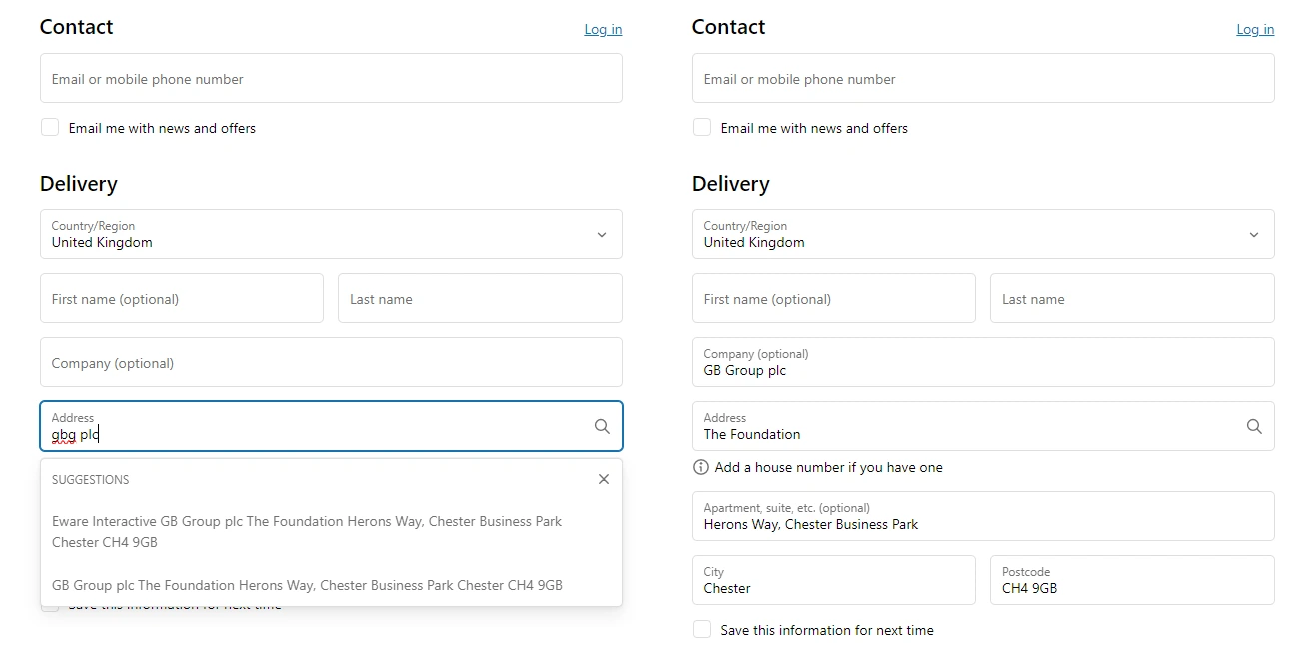
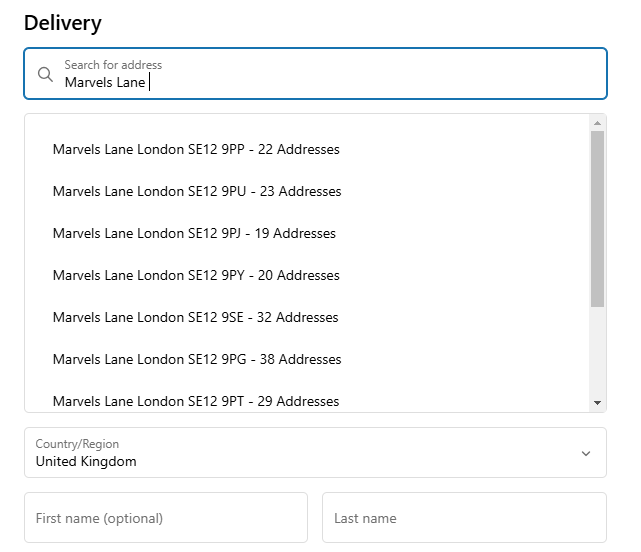
Address Capture is enabled by default once your store is set up. As a customer types in the address field, Loqate suggests matching addresses. The customer selects one and the address fields fill in.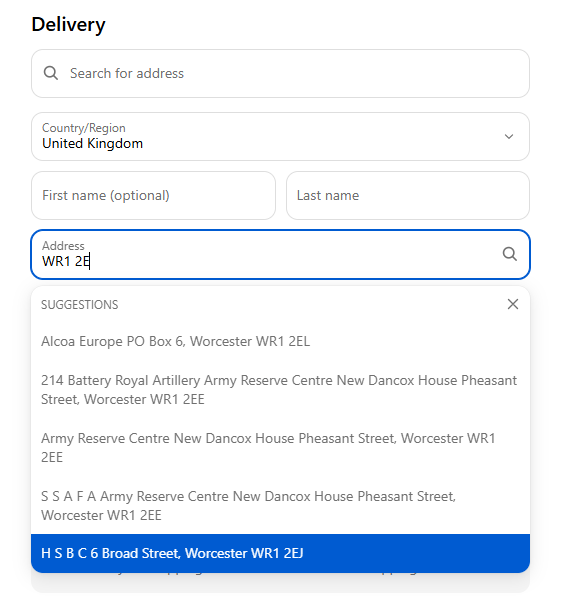
Address Verify
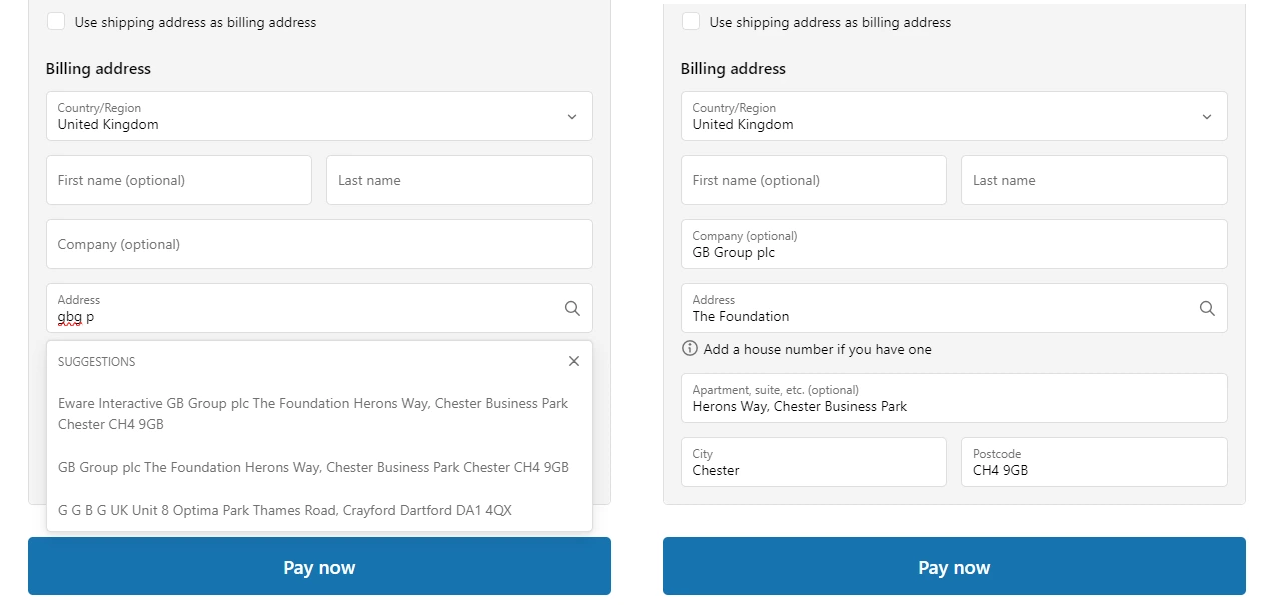
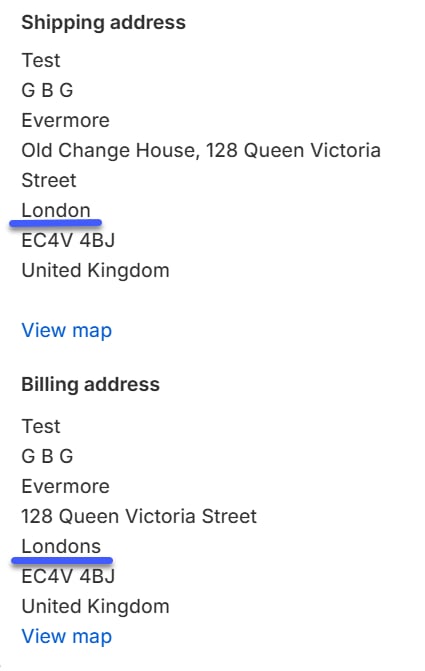
Address Verify is optional. When a customer types an address themselves instead of choosing a suggestion, Address Verify checks it against Loqate’s reference data using a process of correction, standardisation, formatting, enhancement and verification, and offers a correction. The customer can accept the correction or keep their original entry. Address Verify changes the delivery address only; it doesn’t affect the billing address.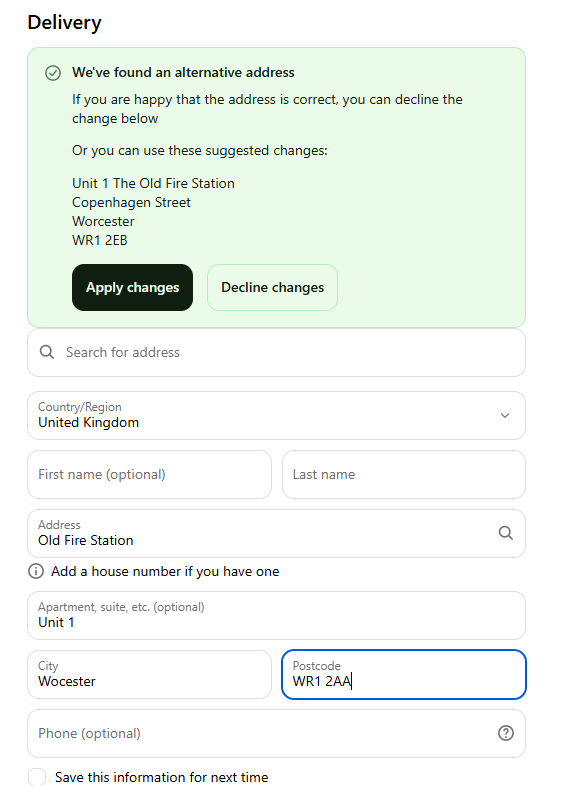

Address Verify is not available with a Loqate SaaS platform key. If your store is connected with
one, both enabled options are greyed out and the settings screen says so.
Email Validation
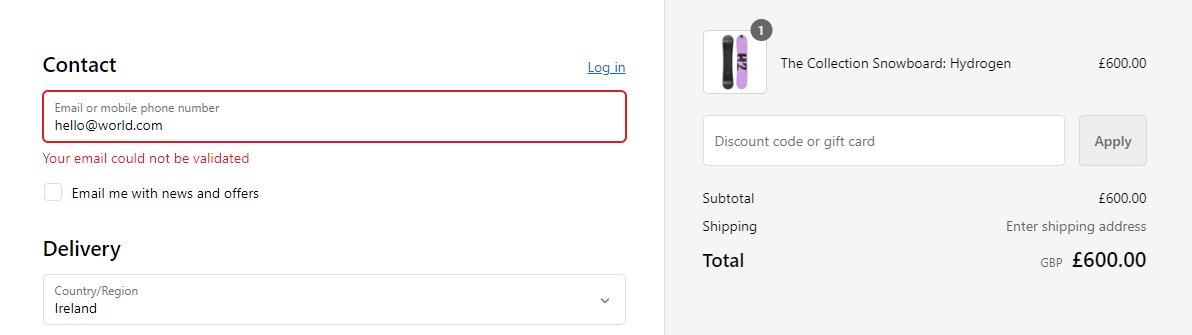
Email Validation is optional. It checks the email address a customer enters during the checkout and tells them when it cannot be validated, so an order confirmation is less likely to bounce. Customers who enter a valid email address see no change to their checkout. You turn it on with the Email Validation switch in the Loqate settings.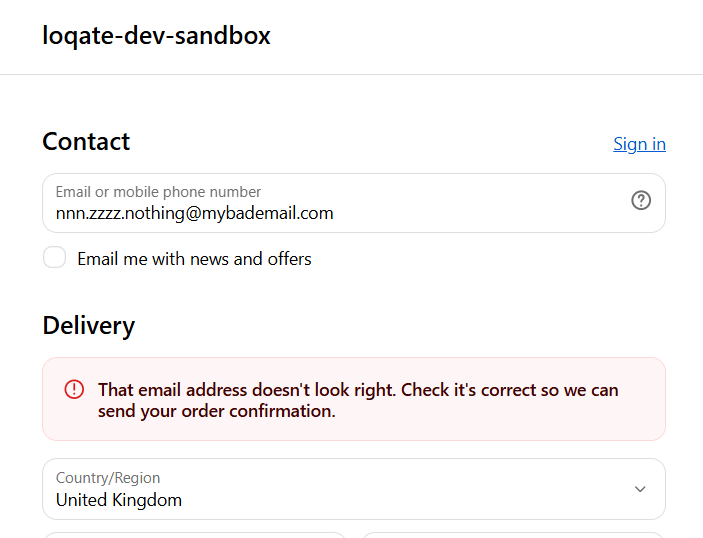
Subscriptions and usage caps
Merchants who come to Loqate through the Shopify App Store buy it through Shopify’s billing, as a monthly subscription with a usage cap. This section explains what you are charged for and what happens each month. Existing Loqate customers connect an API key from their Loqate account instead, and their billing stays with Loqate.Your plan is your monthly usage cap
Each plan’s price is also its cap. A £100 plan gives you £100 of address lookups, verifications and validations to use in that month. Every plan includes the same three Loqate services, so the only thing that changes between plans is the cap.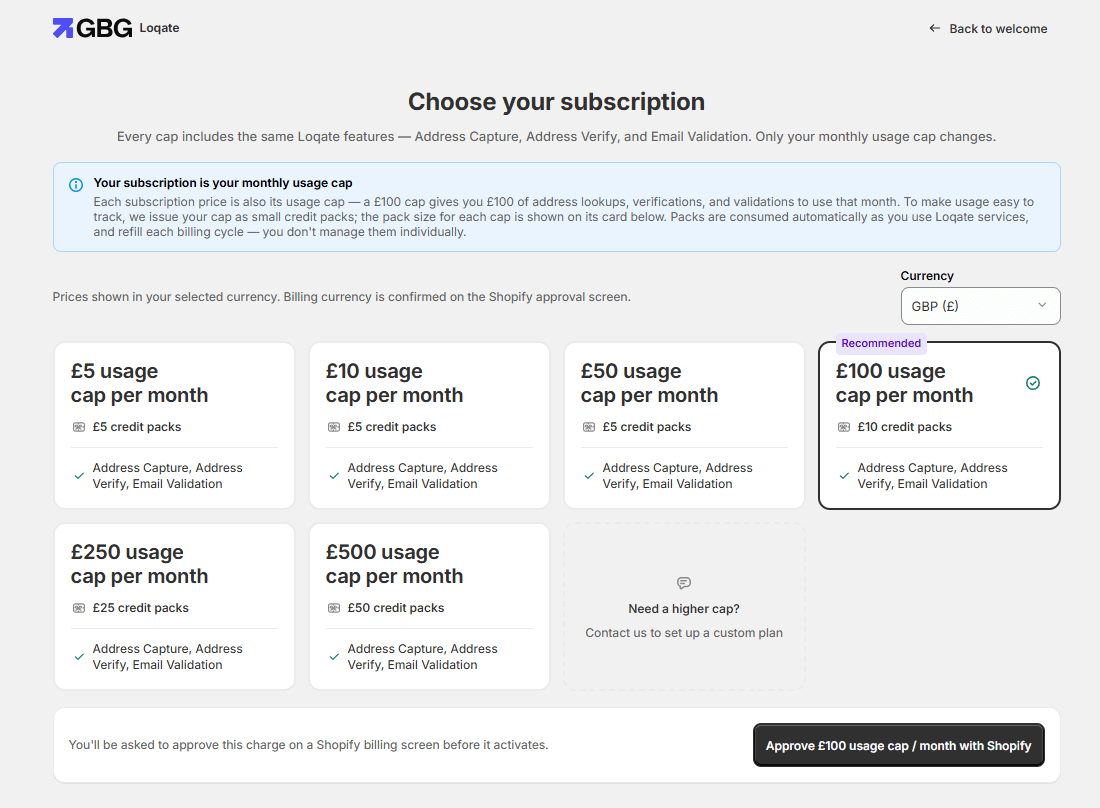
Credit packs
Your cap is issued to you in small amounts called credit packs, rather than as one large balance. Each plan card shows the pack size for that plan.- Packs are used up automatically as your store uses Loqate services.
- New packs are created for you during the billing period, up to your cap.
- You do not create, assign or top up packs yourself.
Approving and activating
You choose a plan in the Loqate app, then approve the charge on Shopify’s own billing screen. Shopify sends you back to Loqate, and the app sets up your Loqate account. Activation takes a few minutes, and the app shows the status changing from Activating to Activated. You are not charged if the setup fails before Shopify takes over.Renewal and cap changes
Your subscription renews automatically each month, on the same date as your first payment. Your cap resets at the start of each cycle. Keep your Shopify payment details up to date: if a charge fails, Shopify pauses collection until a payment succeeds. You can move to a different plan at any time.
Lowering your cap does not affect usage you have already had this cycle.
Shopify Integration In use
See the Loqate Shopify app in use after it has been installed and configured.Video overview
Here’s what this looks like, using an example checkout page:Example screenshots
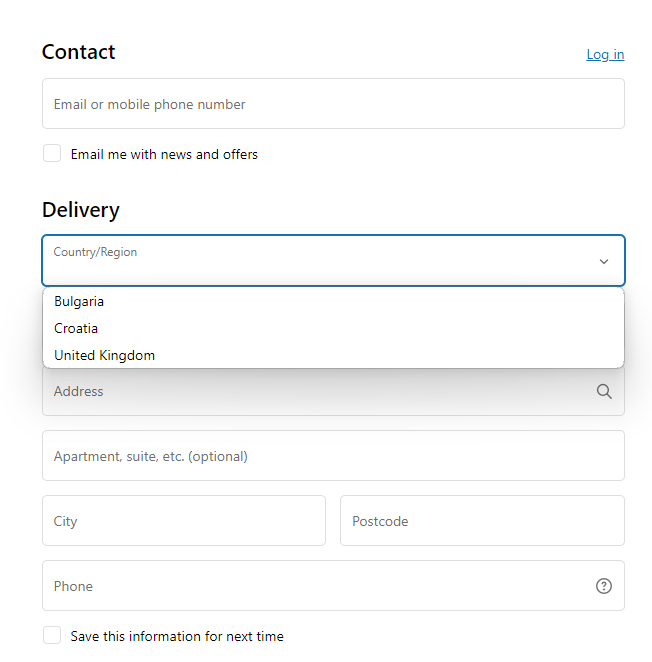
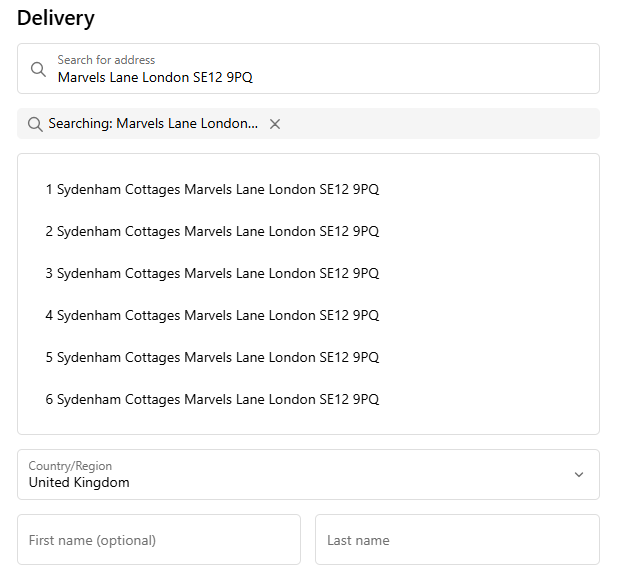
We’ve also put together some screenshots of how it looks on an example checkout page, to give you a sense of what to expect.- Address Capture in use
- Address Verify in use
- Email Validation in use
Here’s what it looks like during an address lookup and after an address has been selected in the Delivery address section: