

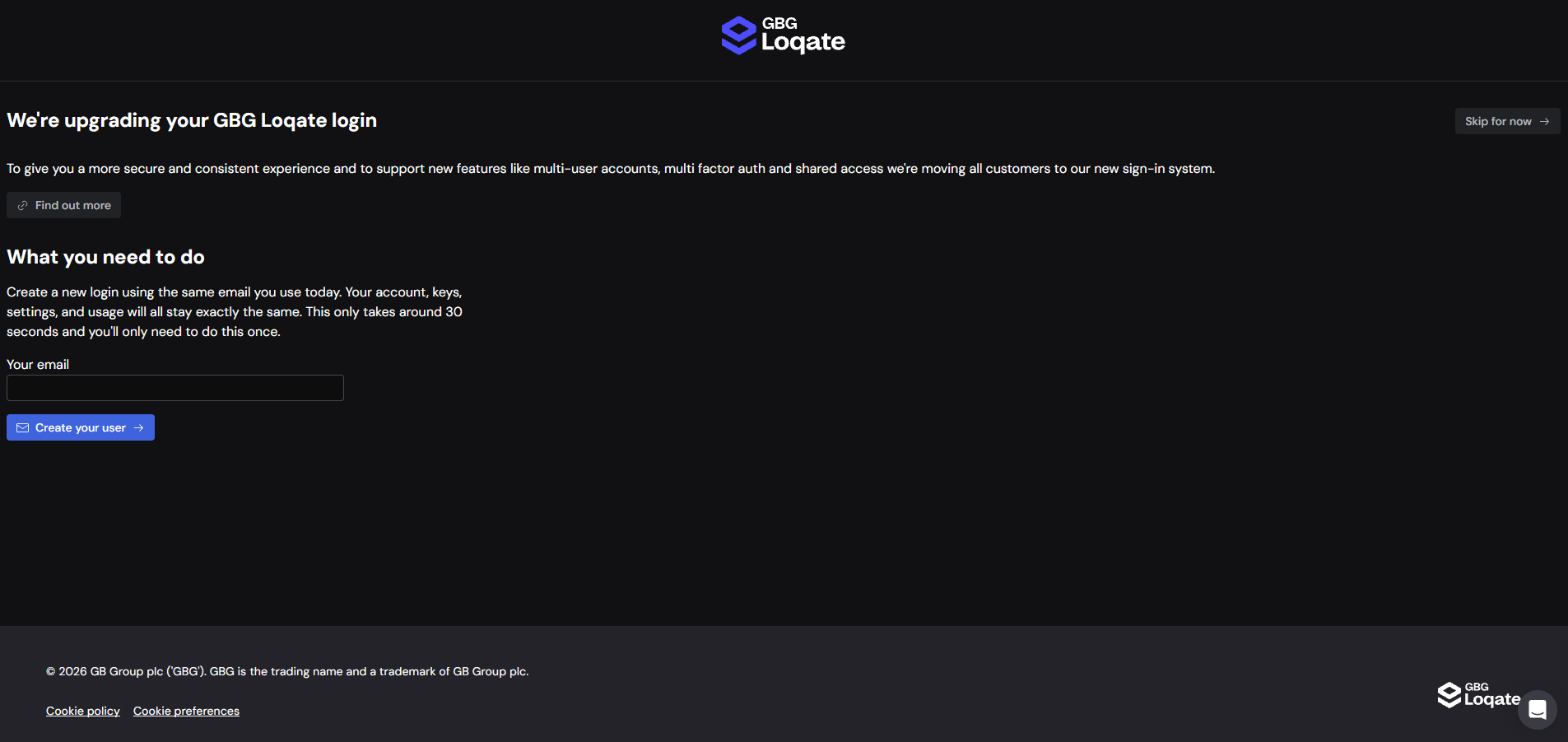
Why We’re Making These Changes?
We’ve moved to a new authentication system that unlocks several benefits, including improved diagnostics and enhanced security features soon to be implemented such as multi-factor authentication (MFA) and passkeys. One of the most frequently requested improvements is the ability for organisations to have multiple users on the same account. This allows teams to collaborate more effectively without relying on a single shared login. New customers already have access to this functionality, and we’re now rolling it out to our existing users.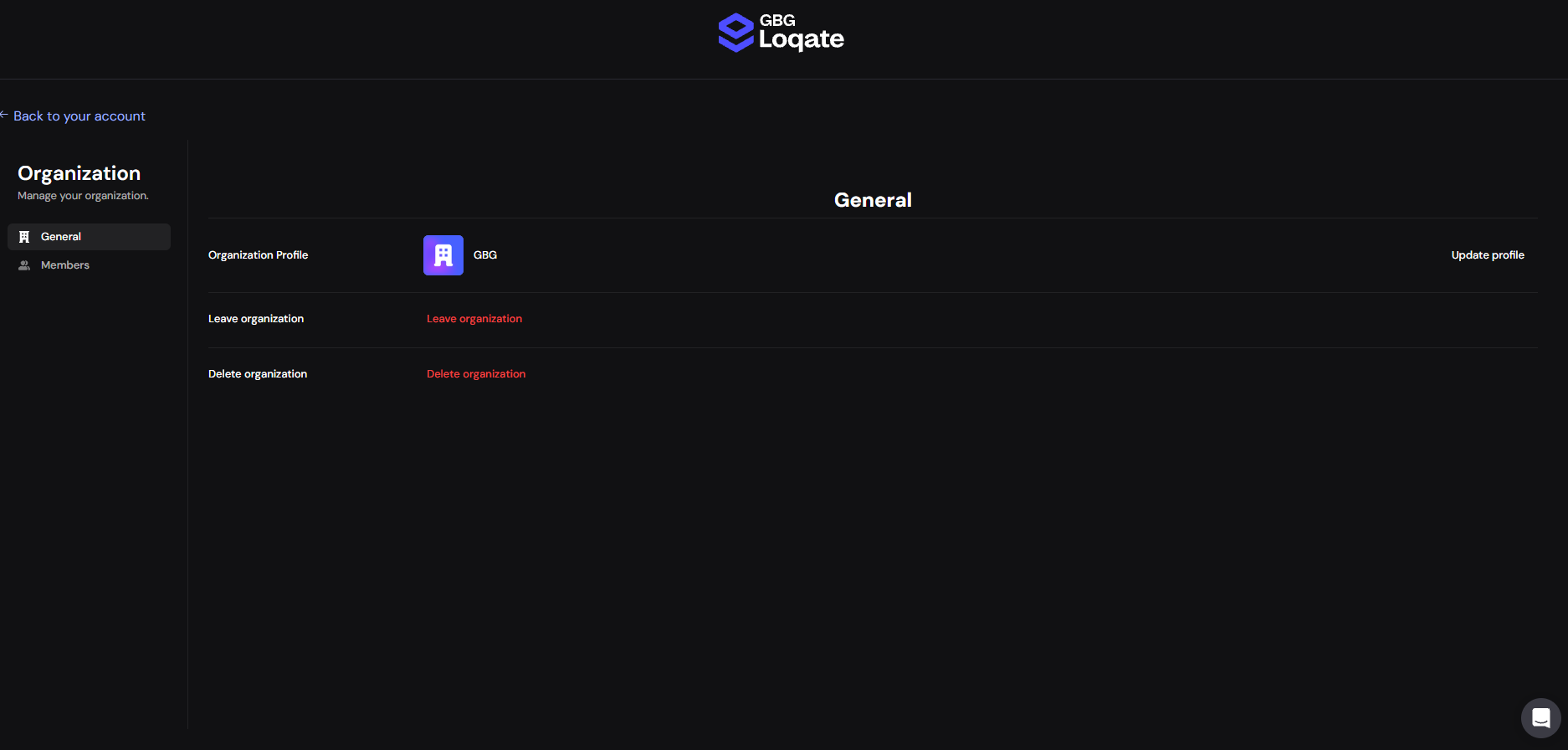
What Changes Will You See?
When you next log in, you’ll see an invitation to upgrade your account. Simply follow the on screen instructions to create a new account using your existing credentials. All your current settings and data will be transferred automatically. After upgrading, you’ll be able to invite additional users to your organisation and manage access more easily. Simply click on your company name in the top right corner of our account section and select “Your Team”. From here you will be able to add and remove users to your organisation. If you experience any issues, please contact our support team, or reach out to us on Slack for any questions.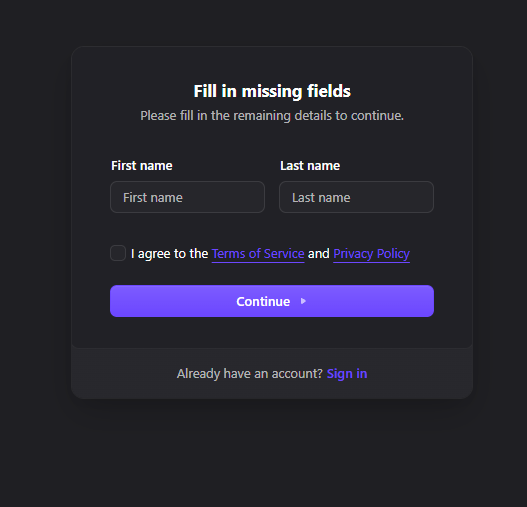
Frequently Asked Questions
When can I upgrade my account?
When can I upgrade my account?
You should see an invitation when you log in. If you don’t see the invitation, please contact support.
If I skip the invitation, can I upgrade later?
If I skip the invitation, can I upgrade later?
Yes. The invitation will continue to appear each time you log in with the same credentials until the full upgrade rollout is completed.
What is the difference between an Admin and a Member?
What is the difference between an Admin and a Member?
Admins can invite or remove users. Members can access the platform but cannot manage users. All other functionality is the same.
What is the difference between a Contact and a User?
What is the difference between a Contact and a User?
A User is someone who can log in to your Loqate Account. A Contact is simply an email address we use to send important account‑related information.Your Loqate Account has always included contacts—these are used for notifications such as balance alerts, security alerts, invoices, and receipts.Users, on the other hand, have login access to your Loqate Account and are managed in the Organisation area. You can find this by clicking your company name in the top‑right corner of the account screen and selecting “Your Team”.
How do I log in once my account is converted?
How do I log in once my account is converted?
You will continue to use the same login page, however, after your account is converted, you must log in using your email address, not your Account Code and Password.If you attempt to log in using the old Account Code and Password combination, it will no longer work.
I have more than one account to migrate. How can I do it?
I have more than one account to migrate. How can I do it?
After you have migrated one of your accounts, the Switch Organisation page will appear. This page lists the other organisations that you can migrate to our new system.In the top‑right corner, you will find a button to log out of the current account.After selecting this option, you will be able to log in and migrate your other accounts. If any of those accounts have not yet been migrated, see Legacy Sign-In for instructions on how to access them.
Why can’t I log in?
Why can’t I log in?
Are you trying to log in with an Account Code?Once your account is converted, the Account Code and Password combination is disabled. You must log in using your email address.Have you been added to the Organisation?If your email address hasn’t been invited to the Organisation, you won’t be able to log in.
Please contact the person who converted the account and ask them to confirm that you appear in the Organisation area (found by clicking your company name in the top‑right corner of the account screen and selecting “Your Team”).Are you trying to log in with the email address of a “Contact” on your Account?See the FAQ titled “What is the difference between a Contact and a User?” above.Can’t switch to an organisation?Maybe you are a member of an account that hasn’t been migrated to the new system.A tooltip will appear with some information that will tell you the current status so you can contact the Admin of that organisation to migrate it or invite you. If you need to sign in to an unmigrated account directly, see Legacy Sign-In.If you are still having problems logging in, please contact our support team who will be happy to help.
Please contact the person who converted the account and ask them to confirm that you appear in the Organisation area (found by clicking your company name in the top‑right corner of the account screen and selecting “Your Team”).Are you trying to log in with the email address of a “Contact” on your Account?See the FAQ titled “What is the difference between a Contact and a User?” above.Can’t switch to an organisation?Maybe you are a member of an account that hasn’t been migrated to the new system.A tooltip will appear with some information that will tell you the current status so you can contact the Admin of that organisation to migrate it or invite you. If you need to sign in to an unmigrated account directly, see Legacy Sign-In.If you are still having problems logging in, please contact our support team who will be happy to help.