

This page and the functionality discussed assumes your account is using our updated login capability. If you have not yet migrated over and would like to know more, please see here.Unsure if you have migrated yet? See our FAQs at the bottom of this page.
Terminology
When a new Loqate Account is created (or an existing one is migrated), a corresponding Organisation is automatically created. The person who creates or migrates the account becomes the first user in that Organisation and is automatically given the Admin role. An Organisation groups users together and is simply a shared space that allows a team of people to access the same Loqate Account. All users in an Organisation can sign into the Account using their own email address. In addition to users, an account also has contacts which we use to send important account and business communication.Managing Account Details
Keeping your account details accurate and up to date helps ensure you can access your services smoothly and securely. Up‑to‑date information also helps you receive important notifications and makes it easier to recover your account in the event of access issues. You can manage your account details from within the “Your Account” area of the account section allowing you to:- Add, edit or remove Contacts and update email preferences : If we need to notify you about important changes, we will email the primary contact on the account. Balance, Security and Billing emails will be sent to all contacts who have these preferences enabled.
- Update company details : Let us know the registered address of your company including VAT number if applicable.
- Add or update GDPR settings : Let us know who is responsible for privacy in your organisation.
Managing your Organisation
Controlling access to your online Loqate Account is achieved through our Multi-User functionality.Organisation Roles
There are two types of roles in the Organisation, an Admin and a Member. Admins can invite or remove users. Members can access the platform but cannot manage users. All other functionality is the same.Accessing the Organisation Manager
Once logged into the account, users can be managed by using the drop-down at the top right of the account section and selecting the Your Team option. Should you be asked to re-log in, just enter your email, no password is required.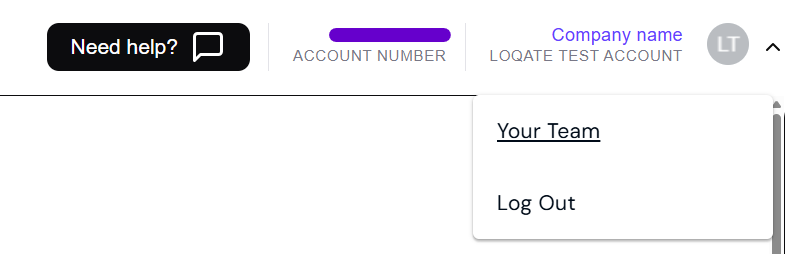
Managing Users
From the Organisation Menu a user with the Admin role can- Invite new users (Members screen): Invited users will receive an invitation to join the Organisation, once that invite has been accepted, they will be able to log in with their own email address.
- Change users’ roles (Members screen): By default, when invited, users are given the Member role unless otherwise set.
- Remove existing users (Members screen): Removing users will prevent them from accessing the account, however if they are still listed as a Contact on the account then they may still receive account communication, such as billing information or security notices. Contacts can be deleted from the main account area.
- Manage the Organisation (Organisation screen): From here you can choose to leave the organisation yourself or rename the organisation in our authentication system.
Multiple Organisations
Thanks to the multiple users in one organisation functionality, you can have multiple organisations under one account. This is useful if you have different teams that need access to the same account but want to manage their own users separately. That means, if you are part of several organisations, when you log in with your email address, we will show a screen where you can choose the organisation you want to use on those accounts. Because you can have different roles in different organisations (for example, Member, Admin, or Contact), the organisation switch screen will list each organisation so you can select the one you want to work with.All Organisations
This screen shows all the organisations that you belong to being a contact, regardless of if they have been migrated before.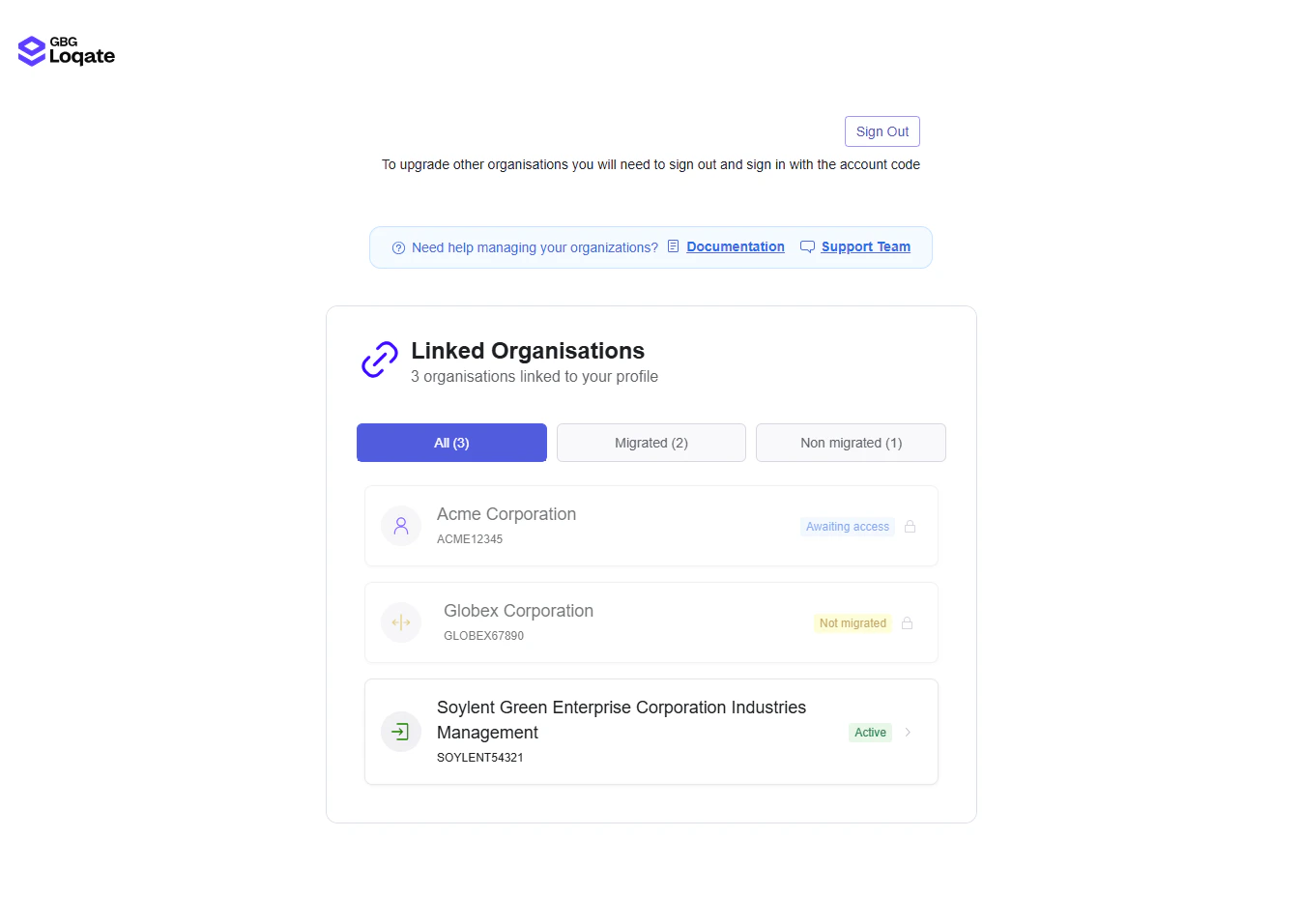
Icons and tags on the organisations
You have three different icons and tags that indicate the status of each organisation:- Green Icon: This should show an inward arrow that says this account has been migrated and is ready for use because you have been added as a user.
- Blue Icon: This should show a user symbol that indicates you are “Awaiting Access”. This is because you are listed as a contact for this migrated organisation but have not yet been added as a user
- Yellow Icon: This should show two arrows pointing outwards and indicates you are “Not migrated”. This means this organisation has not yet been migrated.
Migrated organisation and user added
If the organisation or organisations have been migrated and you have been added as a user, you should see the following:
Migrated Organisation where you are a contact but not a user
This can happen when organisations have been migrated, you are the primary contact but have not been added as a user of that organisation. Because of this, you won’t be able to log in to that organisation, but you will be able to see it on the switch organisation screen. If you try to access that organisation, you will see a message asking you to contact your administrator to add you. In this case, you will see an image like the one above.Non-migrated organisations
Organisations that haven’t been migrated yet will show.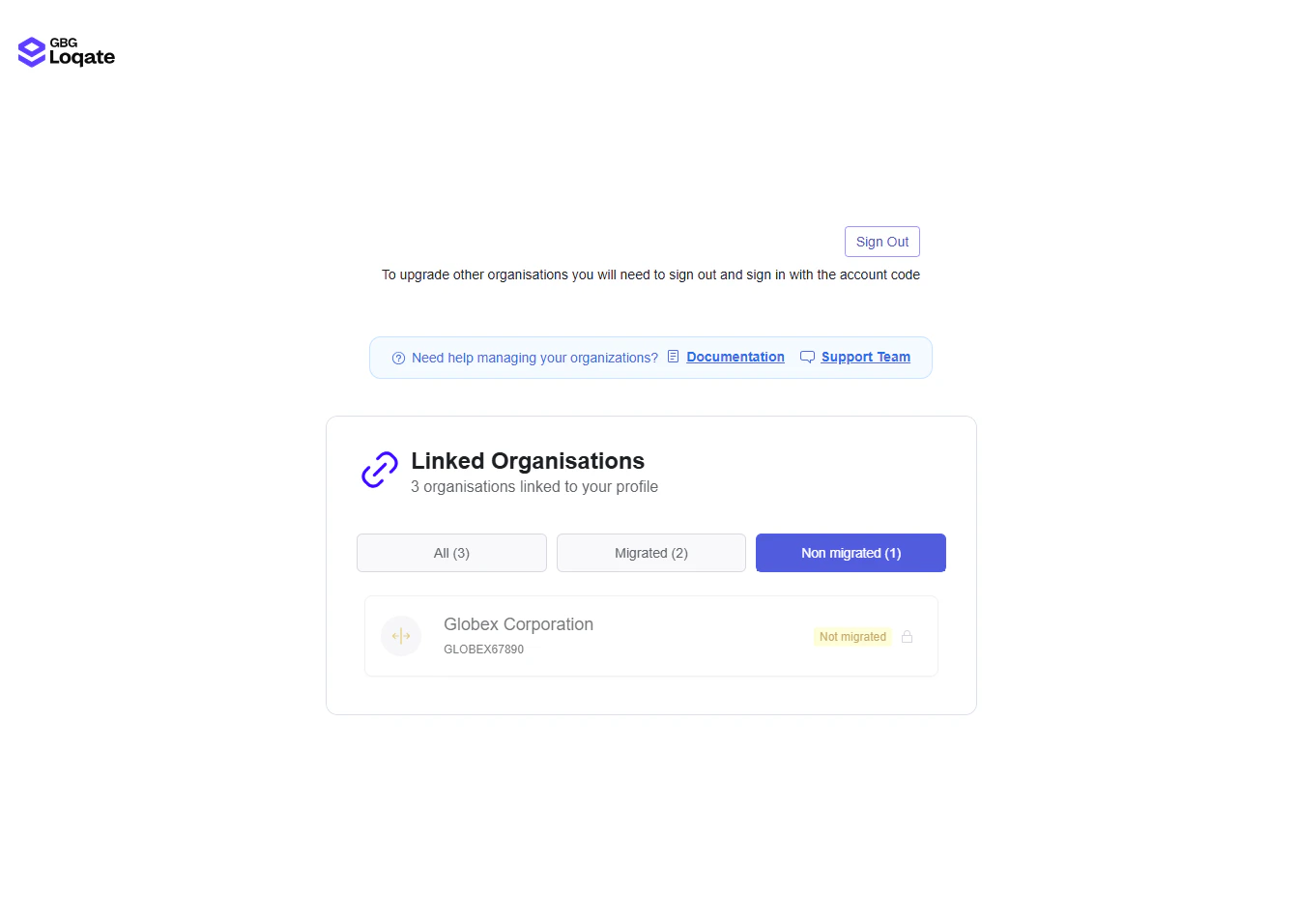
Frequently Asked Questions
What is the difference between a Contact and a User?
What is the difference between a Contact and a User?
A User is someone who can log in to your Loqate Account. A Contact is simply an email address we use to send important account‑related information.Within the “Your Account” area of the account section, you can add contacts and we use these details for notifications such as balance alerts, security alerts and invoices.Users, on the other hand, have login access to your Loqate Account and are managed in the Organisation area. You can find this by clicking your company name in the top‑right corner of the account screen and selecting “Your Team”.
How do I log in to my account?
How do I log in to my account?
You can log in here using your email address as long as you are a user in the Organisation for the account.
I am having problems logging in
I am having problems logging in
Are you trying to log in with an Account Code?Historically, customers have been able to log into their account using an Account Code and Password. Once an account is using our updated login capability, the ability to log in with an Account Code and Password is disabled. You must log in using your email address.Have you been added to the Organisation?If your email address hasn’t been invited to the Organisation, you won’t be able to log in.
Please contact the person who created, or converted the account and ask them to confirm that you appear in the Organisation area (found by clicking your company name in the top‑right corner of the account screen and selecting “Your Team”).Are you trying to log in with the email address of a “Contact” on your Account?See the FAQ titled “What is the difference between a Contact and a User?” above. If your account has not yet been migrated and you need to sign in using an account code and password, see Legacy Sign-In.If you are still having problems logging in, please contact our support team who will be happy to help.
Please contact the person who created, or converted the account and ask them to confirm that you appear in the Organisation area (found by clicking your company name in the top‑right corner of the account screen and selecting “Your Team”).Are you trying to log in with the email address of a “Contact” on your Account?See the FAQ titled “What is the difference between a Contact and a User?” above. If your account has not yet been migrated and you need to sign in using an account code and password, see Legacy Sign-In.If you are still having problems logging in, please contact our support team who will be happy to help.
Is my account using the updated Login capability?
Is my account using the updated Login capability?
Already logged in? If you logged in with your email address and received a “magic link” or code to log in, then your account is using our updated login capability.Not logged in yet? If you try to log in using your Account Code and the password that previously worked, and are redirected to a message stating that “Your account security has been upgraded and you now need to authenticate via email.”, then your account has been migrated to our updated login capability.More information about account migration to the updated Login capability can be found here
Payment Questions
What has changed in the payment flow?
What has changed in the payment flow?
The user-facing payment flow has not changed. Behind the scenes, we have moved to Stripe as our payment supplier to improve reliability and security. This also gives us better visibility into payment activity, helping us diagnose and resolve payment issues more quickly. If you need help with a specific checkout journey, please get in touch with our Support team.
Why do I need to accept new terms to make a payment?
Why do I need to accept new terms to make a payment?
To complete a payment, you need to accept the new Stripe terms. This ensures your purchase is processed against the latest applicable terms for the updated payment service. If you are unsure which terms apply to your account, please get in touch and we can confirm this for you.
Why do I need to supply my company address to add a card or make a purchase?
Why do I need to supply my company address to add a card or make a purchase?
You need to provide your company address when adding a card or making a purchase so we can complete billing and compliance checks. It also helps ensure invoices and account records are accurate and up to date. If you are not sure what address details to provide, please contact our Support team.
What happens if I don't have enough credit to cover an entire batch request?
What happens if I don't have enough credit to cover an entire batch request?
If your account doesn’t have enough credit to cover the full cost of a batch request, you’ll receive an ‘Account out of credit’ or ‘Not enough credit for request’ error and no results will be returned. To run the batch, top up your credit to cover the full cost before resubmitting; see Common errors.