

This page is relevant only while your account is still on the legacy authentication system. If your account has already been migrated, sign in at https://auth.loqate.com/en/sign-in with your email address. For migration information, see Account Upgrade.
When to use legacy sign-in
Legacy sign-in athttps://auth.loqate.com/en/legacy-sign-in is for accounts that have not yet been migrated to the new authentication system. You need it if you see the message “Some of your accounts use legacy login” on the Switch Organisation screen.
You do not need legacy sign-in if your account has been migrated. Migrated accounts use email and magic link only.
Signing in
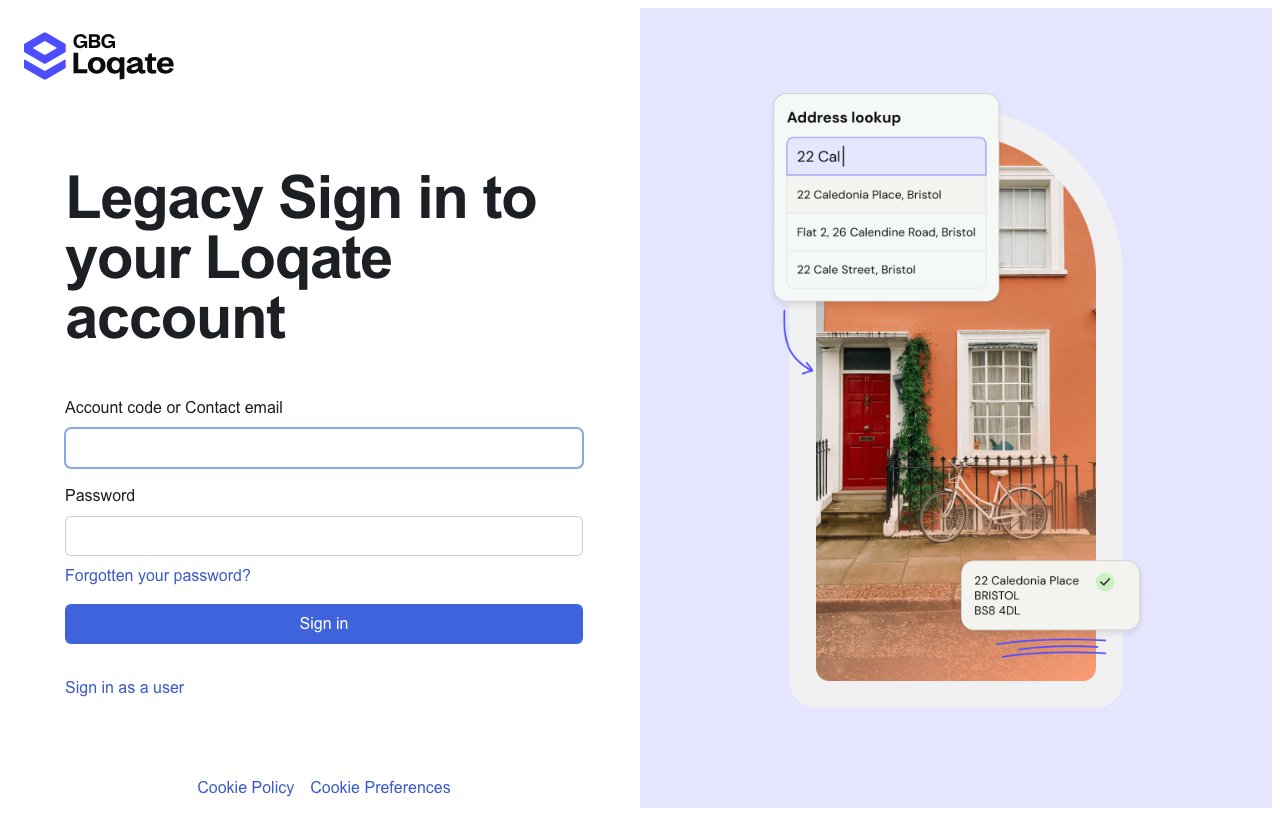
- Sign out of your current account. On the Switch Organisation screen, select the Go to legacy sign-in button — you will be signed out automatically and redirected to the legacy sign-in page.
- Sign in with your account code or contact email. The field label on the form reads “Account code or Contact email”. Enter your account code (e.g.
ABCDE12345) or the contact email associated with the account. - Enter your password and select Sign in. After a successful sign-in you will be taken to the account upgrade flow automatically.
Finding your account code
Your account code appears in the top-right area of the Loqate account dashboard athttps://account.loqate.com. It has the format ABCDE12345 — five letters followed by five digits.
If you have multiple accounts, each has a distinct account code. You will need to sign in separately for each unmigrated account.
Troubleshooting
Invalid email or account code, or password
Check that the account code is entered exactly (no spaces, correct case). Check caps lock. If you have forgotten your password, select Forgotten your password? on the sign-in page — it links tohttps://account.loqate.com/password. Note that this password reset is for the legacy account password only, not for email-based sign-in.
Account already migrated
When a migrated account code is submitted, the form shows “Your account has been migrated to email-based sign-in.” with a “Sign in with email” link. This means your account has already been upgraded — select Sign in with email and use your email address to access it.Migration not completing
After signing in successfully, you should be taken to the account upgrade flow automatically. If the upgrade does not complete or you encounter an error on that page, contact the support team.Migration timeline
When you sign in at https://auth.loqate.com/en/legacy-sign-in, you will be asked to upgrade your account if it has not yet been migrated. Follow the on-screen instructions to complete the upgrade — see Account Upgrade for full details. Until your account is migrated, you can continue to access it using legacy sign-in as described above.After migration
Once your account is migrated, sign in at https://auth.loqate.com/en/sign-in using your email address. No password is required — you will receive a sign-in link by email. You can invite additional users to your organisation from the Your Team section. For more information on managing your organisation, see Managing Your Account.Frequently Asked Questions
Can I use my email address instead of my account code?
Can I use my email address instead of my account code?
Yes. The sign-in field accepts either your account code or the contact email address associated with the account. If your email is linked to multiple accounts, you will see a message asking you to sign in with your account code instead.
I have more than one unmigrated account. How do I access all of them?
I have more than one unmigrated account. How do I access all of them?
Sign in and complete the upgrade for one account, then return to the legacy sign-in page to sign in with the next account code. Each account must be migrated separately.
Where can I get more help?
Where can I get more help?
Contact our support team or reach out on Slack.