

What is lqtInter
lqtInter is a tool used to provide platform agnostics. This is an interactive address testing facility for a command-line based tool that can run single addresses. It is similar to lqtDemo.exe but in the form of a simple “SQL-like” interface.
You can specify the path to the Loqate Global Knowledge Repository via the command line. You can also specify server options via the command line. If run without specifying the Global Knowledge Repository, lqtInter will prompt for the path on start up. A valid path must be specified and lqtInter will exit if a valid repository is not found.
Platform-Specific Instructions
Windows
Please ensurelqtcr.dll is located in the same directory as lqtInter or add the path to lqtcr.dll to the PATH environment variable. If lqtInter is 64-bit then lqtcr.dll must also be 64-bit.
lqtInter can be invoked from Windows Explorer or the command prompt. Users may experience an issue with non-ASCII text. To display it properly please configure the command prompt to use a compatible font. lqtInter will attempt to output UTF-8, we have found that “NSimSun” seems to work for many countries. Older versions of Windows may not be able to display non-ASCII text.
Linux
Please setLD_LIBRARY_PATH to point to the folder that contains the Loqate library. Then lqtInter can be run from the command prompt. If lqtInter is 64-bit then the Loqate library must be 64-bit also.
In order to display UTF-8 characters properly set the command window to a suitable font.
AIX
Please setLD_LIBRARY_PATH to point to the folder that contains the Loqate library. Then run lqtInter from the command prompt. If lqtInter is 64-bit then the Loqate library must be 64-bit also.
In order to display UTF-8 characters properly set the command window to a suitable font.
LqtInter Commands
Commands tolqtInter are specified by # followed by the command and can be entered at any of the normal prompts (OPTIONS, SELECT, FROM, WHERE).
Input Syntax Queries
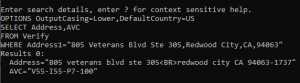
A query to the Loqate engine consists of three parts: the output fields, the tools to use, and the input data. Once the input data is specified, then the selected tools are run and the requested fields are output. It is possible to get multiple results; each set of results will be displayed.Example
The SELECT Prompt
TheSELECT prompt is used to specify the Loqate output fields to be displayed for the query. To display the quick help menu, enter ? (this can be used at any of the prompts).
Please note field names are case sensitive. To display all output fields, enter * at the select prompt. Using * will return multiple results, it is recommended to specify the fields of interest in order to display the expected results.
See Appendix A for a list of common field names.
SELECT Address,AVC

The FROM Prompt
TheFROM prompt is used to select the tool of choice, i.e. Verify, Geocode, etc. You can enter ? to obtain quick help (this can be used at any of the prompts).
See Appendix C for a list of common tools.
FROM Verify

The WHERE Prompt
TheWHERE prompt is where you specify the input fields to Loqate. This is usually the address as address lines or elements. Please note the field names are case sensitive. To obtain quick help enter ? (this can be used at any of the prompts).

Setting Server Options
Server options can be specified by entering#OPTIONS (shortcut #O). This will bring up the options prompt. See Appendix B for a list of commonly used server options.
Once a server option is set it will stay in effect for the current session of lqtInter or until overridden with a new value. Setting server options does not carry over between sessions. Once server options have been specified (or nothing entered) lqtInter will return to the point it was invoked from.
To obtain quick help enter ? (this can be used at any of the prompts).
OPTIONS OutputCasing=Lower,DefaultCountry=UK
Appendix A: Field List
A list of Loqate fields can be found here. Please note that field names are case sensitive and should be specified exactly as shown.Appendix B: Server Option List
A list of server options can be found here.Appendix C: Tool List
The following is a list of commonly used tools. It is not a full list.- Parse
- Match
- Format
- Verify
- Search
- Geocode
- Enhance