

Windows Platform
Linux Platform
Silent Mode
Install Manager can be run in silent configuration using the available set of silent setting options. Using these options Install Manager can be set up to run such that there is no user interaction required.Silent Mode Settings File Options
The full sets of options that are allowed to be defined are the following:LICENSE_KEY=<License Key value>LICENSE_PACK_PATH=<Full path to the license pack file>INSTALL_FOLDER=<Full path to the installation folder>DOWNLOAD_FOLDER=<Full path to the download folder>PRODUCTS=<Comma separated list of product names>MOVE_OLD_DATA_TO_SUBFOLDER=<yes or no>DOWNLOAD_OPTION=<yes or no>INSTALL_NEEDED=<yes or no>PROXY_SERVER_NAME=<Name of the Proxy Server>PROXY_PORT=<Proxy port number>
Tips for Using Silent Mode
- Either
LICENSE_KEYorLICENSE_PACK_PATHis needed. PRODUCTSwill equal the comma separated list of product names. SetPRODUCTStoallin order to install the full set of products allowed in the license.- If installation is done over an existing data folder, it is useful to move the old files to sub folder. This option can specified by setting
MOVE_OLD_DATA_TO_SUBFOLDERtoyes. - If data packs are to be downloaded, then the option
DOWNLOAD_OPTIONshould be set toyes. If local data packs are to be used, the optionDOWNLOAD_OPTIONshould be set tono. - If only data packs are to be downloaded and not installed,
INSTALL_NEEDEDshould be set tono. If the downloaded or local data packs should be installed,INSTALL_NEEDEDshould be set toyes. PROXY_SERVER_NAMEandPROXY_PORTshould both be set if proxy server settings are needed.
Example 1: Download Data Packs
This example specifies the license pack path and requires download of the data packs:Example 2: Use Local Data Packs
This example specifies license key and requires installation by using local data packs available atc:\DL:
Preparing Silent Settings File
Silent mode settings file can be any text file with a set of the options defined above.Running Install Manager in Silent Mode
Install Manager can be run in silent mode by providing the command line options:InstallManager.sh. On Windows silent mode can be launched by executing the InstallManager.bat with the above command line option.
Config Mode
Install Manager can be run in custom configuration using the available set of config options. Using these config options Install Manager can be set up to run such that certain UI options are not presented to the user and certain fields are pre-populated.Config File Options
The full sets of options that are allowed to be defined are the following:OPTION_BRAND_TITLE=<Company name>
Customize the company name displayed in Install Manager.
OPTION_SKIP_DOWNLOAD=<yes or no>
When set to yes, local data packs will be used for installation.
OPTION_DOWNLOAD_FOLDER=<Full path to the folder where data packs are available>
Specify the download folder location.
OPTION_INSTALL_FOLDER=<Full path to the folder where data packs are to be installed>
Specify the installation folder location.
OPTION_LOCAL_LICENSE_PATH=<Full path to the license pack file>
Specify the path to the license pack file.
OPTION_LICENSE_AGREEMENT_PATH=<Full path to license agreement file in HTML format>
You can specify the path to your custom license agreement file.
OPTION_DOWNLOAD_BASE_URL=<Base URL of the server to download data>
Specify the base download URL.
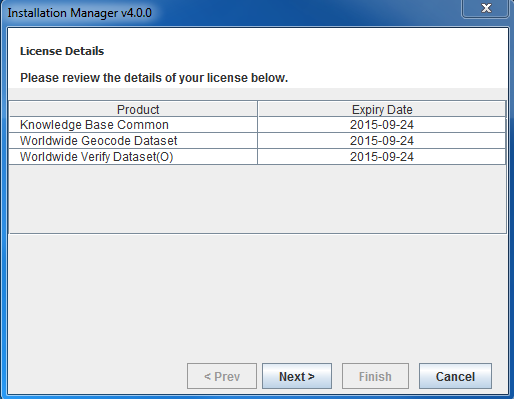
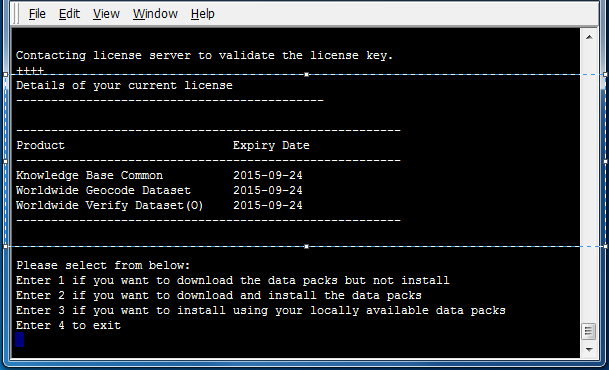
OPTION_SKIP_LICENSE_REVIEW=<yes or no>
When set to yes, the License Review screen will be skipped.
GUI Screen
Command Line
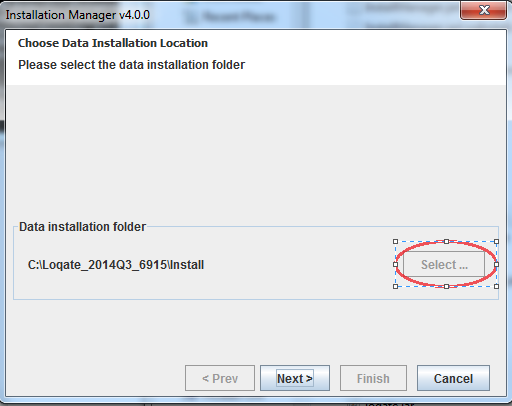
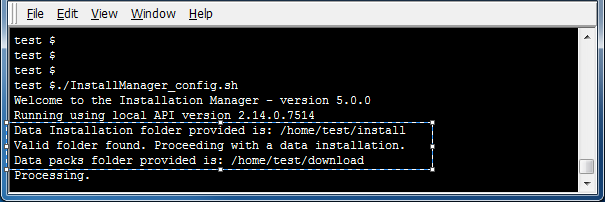
OPTION_SELECT_FOLDER_DISABLE=<yes or no>
When set to yes, the folder selection option will be disabled.
GUI Screen (Disabled)
Command Line (Disabled)
no, folder selection option will be enabled.
GUI Screen (Enabled)
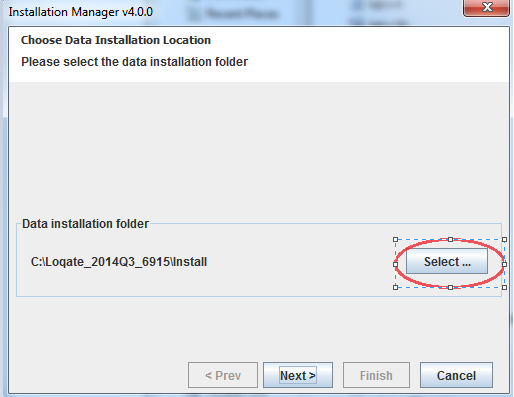
Command Line (Enabled)
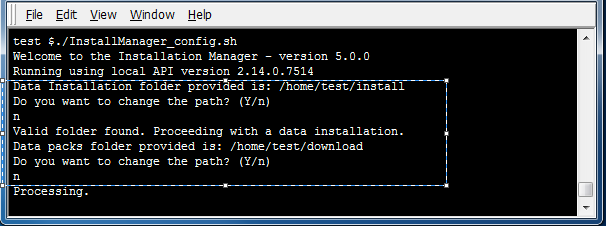
OPTION_MANDATORY_PRODUCTS=<Comma separated list of product codes>
Datapacks that need to be installed mandatory can be mentioned in this list enabling the user installs all the required files. For example, KBCOMMON is a must in the Loqate data directory along with other country files.
Config File Example
Preparing Config File
Config mode settings file needs to be an encrypted file for use at Install Manager run time. The text file containing the config options (similar to above example) can be encrypted by running Install Manager with the-encrypt command line parameter.
Command for encrypting config file:
<inputfilename>.enc in the same folder as the input config file. This encrypted file should be bundled with the Installers for executing Install Manager in config mode at the time of Installation.
Running Install Manager in Config Mode
Install Manager can be run in config mode by providing the command line options:InstallManager.sh. On Windows config mode can be launched by executing the InstallManager.bat with the above command line option.
Important Notes
File and Folder Paths in WindowsWhile specifying the file or folder path in Windows, please use double backslash
\\ in the path.Customizing Company NameAll default error messages refer to Loqate. If you wish to have your company name to be shown, please specify the Brand title option.For example: “There was an error during the installation. Please contact Loqate technical support”.When
OPTION_BRAND_TITLE=XXX, the message will be: “There was an error during the installation. Please contact XXX technical support”.License AgreementBy default Loqate license agreement will be shown if the required license agreement file and path are not provided in the config file.
Default Base URLBy default the base URL is https://download.loqate.com