

- Launch Microsoft Visual Studio (the following screenshots are taken from Microsoft Visual Studio 2005).
- Select File > New > Project
- The New Project wizard will open. Highlight “Win32” under the Visual C++ node on the left under Project types and “Win32 Console Application” under Templates on the right as seen below.
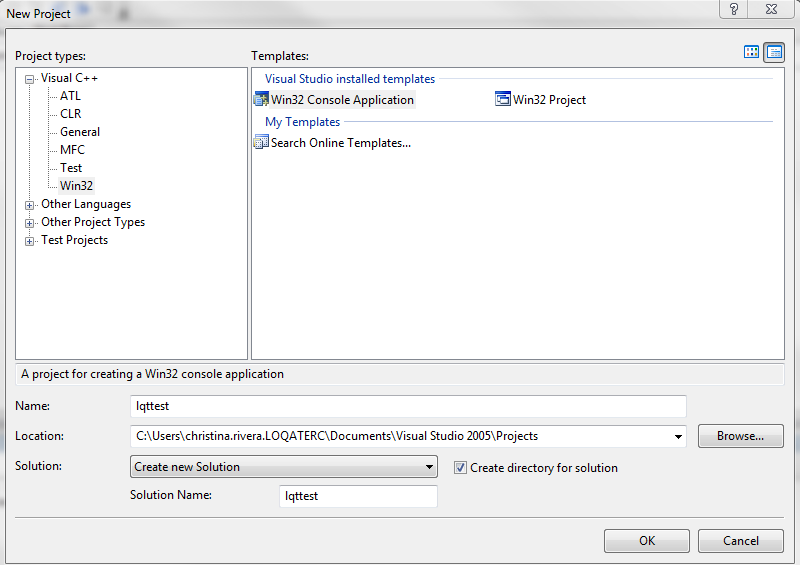
- Enter the name for your project in the Name field and select OK (this will automatically populate the Solution name with the same name). For this example, we will use “lqttest.”
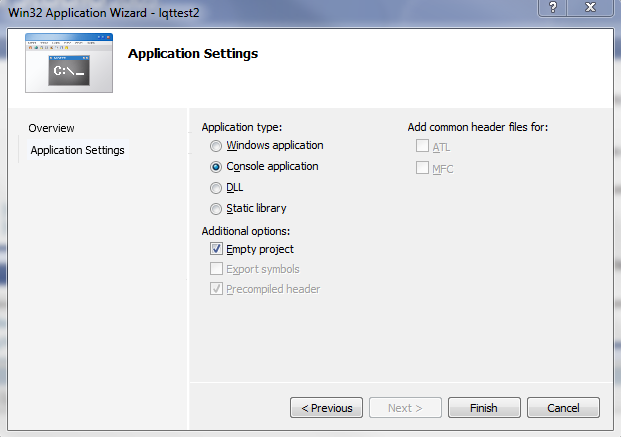
- The Win32 Application Wizard will open; select Next.
- Select “Console application” for Application type and click the “Empty project” box under Additional options as seen below and select Finish.
- Highlight and right-click the “lqttest” project in the Explorer window. Select Add > Existing Item…
- Browse to the directory where your Loqate software is installed and you will see both the lqtcr.h and lqtsample.cpp files. Select both files and select Add as seen below.
.png?fit=max&auto=format&n=SCbzdIaHMqk4IVMS&q=85&s=bb5341134d4d1f484f34b76a232b5ab7)
- Highlight and right-click the “lqttest” project in the Explorer window again and select Properties.
- In the Configuration drop-down menu, select “All Configurations” and for the Platform drop-down menu, select “Active(Win32).”
- Under Configuration Properties, expand the C/C++ node and select General. We will set the Additional Include Directories to point to your Loqate install directory. Click on the ellipses and it will open another window. Click the folder icon and click on the next set of ellipses. Browse to your Loqate install directory and select Open and hit OK. Next, hit Apply.
.png?fit=max&auto=format&n=wwkAPZOZpT3jkoyU&q=85&s=0492ef534dc8a0f9a57440ab8136ff6a)
- Stay in the Property Pages window and expand the Linker node. Highlight Input and enter the path of the lqtcr.lib file in the Additional Dependencies field.
- Right-click the “lqttest” project and select Build. You should see in the Output window at the bottom if the build was successful or not.
- Next, we will add the lqttest.exe file to your Loqate install directory. Go to Documents > Visual Studio 2005 > Projects > lqttest > debug > lqttest.exe. Copy the lqttest.exe file that was created and add it to your Loqate install directory. Your Loqate install directory should now have the following contents:
.png?fit=max&auto=format&n=hAGiqjOaCT5E-irt&q=85&s=17fe7c2d8061499da4cd809b5f5fd197)
- Open a command window and cd to your Loqate install directory. Run the lqttest.exe file and you will see the output of the single record as seen below.
.png?fit=max&auto=format&n=_M6UKnN7xWZAxsg3&q=85&s=169496308ee39833489d9b8f7b67dab3)