

Overview
This tutorial describes a sample Java program which uses Loqate Local API to process an input text file containing multiple international addresses. The program writes all Loqate output results to an output file.Assumptions
It is assumed that the following software is installed in the user’s system:- Eclipse IDE for Java Developers, or similar Java IDE
- Java SE Development Kit 7 update 3
Eclipse configuration
In order to access the Loqate engine from Java using Eclipse, the user must add the Loqate library jar file to the Eclipse’s Java build path. This can be easily done in Eclipse following these steps:- Open Eclipse. Create a new project or select the existent project that will use the Loqate engine.
- Select “Project” → “Properties”. Then select “Java Build Path” from the options shown on the left panel. The Properties panel will look similar to the panel shown in the figure below.
.png?fit=max&auto=format&n=5ob_QWcOxwgHoz2p&q=85&s=5a6530477940af9b5be85a03ec255ae5)
Figure 13: Eclipse Project Java Build Path
- Please click on the “Add External JARs…” button. The “JAR Selection” panel will open. Browse to the Loqate installation directory and select the loqate.jar file (i.e. C:\Program Files \Loqate\loqate.jar). Click on the “Open” button. The Properties panel will look as shown in the figure below. Notice that the loqate.jar file has been added to the Libraries in the Java build path. Click “Ok”. The Properties window will close.
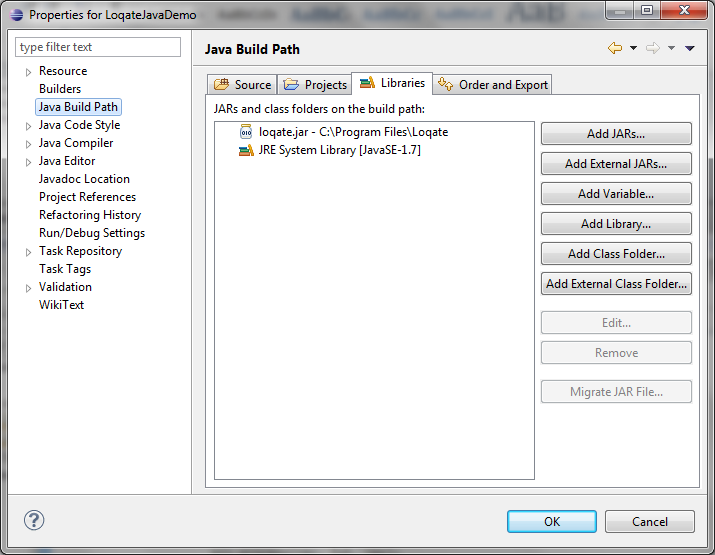
Figure 14: Adding the Loqate library to the Java Build Path
Sample Program
A sample program is provided to illustrate how to communicate with the Loqate’s Local API using Java. The program reads an input file that includes multiple addresses, loads the information into the Loqate Server which is then used to process those addresses. The results obtained are then written to an output file.File Input
In the sample program, the input data is read from a text file in UTF-8 format (LoqateTestData100.txt). The input file is expected to include multiple addresses (records), including one address per line. Each address includes up to six fields (Address1, Address2,Locality, AdministrativeArea, PostalCode and Area) which are separated by tabs. More fields can be also used. The sample program reads that input file using Java’s java.io.FileReader and java.io.BufferedReader. BufferedReader.readLine() is used to read the input file one line at the time. The String.split() method is used to store each address field in a different cell of the array called splitArray. This array is later used to set the values for each Loqate record. The figure below shows the top section of the input file used.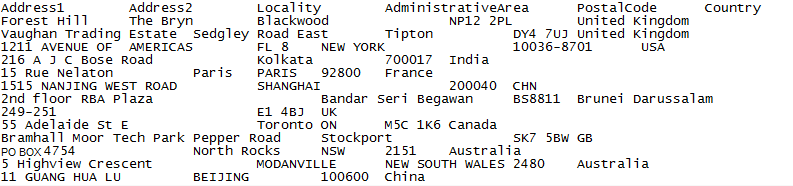
Figure 15: Input Sample File
- Loqate Server Set Up
- Load the Loqate library
- Create the Loqate server
- Initialize the server instance
- Create the Loqate process list
- Create the Loqate process options
- Open a session to the Loqate server
- Loqate Record Processing
- Create a Loqate input record (or multiple records)
- Create a Loqate Process Result object (or multiple objects) for those input records
- Process the Loqate input record
- Loqate Server Teardown
- Remove the Loqate Input Record(s)
- Remove the Loqate Process Result(s)
- Close Loqate Server Session
- Remove the Loqate Process list
- Remove the Loqate Process options
- Stop and delete the Loqate server
Loqate Server Setup
Load the Loqate libraryThis step is done in the sample code by the following call:
System.loadLibrary(“lqtjava”);
where lqtjava is the name of the executable jar library included in the <Loqate installation path>/Loqate directory.
Create and Initialize the Loqate server
In the sample code, the Loqate server is created with the following call to the Loqate API:
lqtServer srv = lqtServer.create();
To initialize the Loqate server the user must provide as an argument the location of the /data directory. In the sample code this is done as follows:
srv.init(“C:\\Program Files\\Loqate\\data”);
In the statement above it is assumed that the Loqate Global Knowledge Repository (GKR) was installed in the C:\Program Files\Loqate\data directory, which is the default installation path.
Alternatively the user can provide the GKR directory path as an argument to the sample program.
Create the Process List
In the sample program, the Loqate process list is created with the following Java call:
lqtProcessList lst = lqtProcessList.create();
The process list is needed later to indicate to the Loqate server which process analysis options are desired on the given input data. The analysis options are defined as lqtProcessOptions, as described in the next section.
Create and Define Process Options
The Loqate process options object is created with the following Java call:
lqtProcessOptions opts = lqtProcessOptions.create();
Next the process list (lqtProcessList) and process options (lqtProcessOptions) can be used to determine which Loqate engine operations are desired to run. The current available process operations are:
- Parse
- Format
- Geocode
- Match
- Query
- Search
- Verify The statements below illustrate how to add the process operations (“Verify” and “Geocode”) and the process options (opts) to the process list (lst).
A call to open() on the lqtserver object creates a Loqate server session and returns the session ID. This is done in the sample program with the following statement:
int session = srv.open();
where srv is an instance of the lqtServer.
Starting the Loqate server session concludes the Loqate server startup section. At this point the sample application is ready to process the input data file.
Loqate Record Processing
The input data file may include multiple international addresses. Every address will be considered a separate record. The following sections illustrate how to process every individual record. Create a Loqate Input RecordA Loqate input record must be created for each separate record of the given input file. In the sample code, an instance of the record object is created with the following statement:
lqtInputRecord rec = lqtInputRecord.create();
The input fields for that record object can be set by calling lqtInputRecord.set(<record field name>, <field value>). In the sample program the field values are read from a String array, as follows:
rec.set(“Address1”, splitArray[0]);
In this statement the record field “Address1” is assigned the value contained in the first element of the String array splitArray, namely splitArray[0].
Create a Loqate Process Result
A Loqate Process Result object is created in the sample program using the following statement:
lqtProcessResult res = lqtProcessResult.create();
In the sample program an lqtProcessResult object is created for every input record.
Process the Record To process an individual record, the program must simply call the process(…) method on an instance of the lqtServer Loqate server. As shown in the sample program, the process method must be provided three arguments:
srv.process(rec, lst, res);
where:
srv is an instance of lqtServer, the Loqate server.
rec is an instance of lqtInputRecord, the Loqate input record.
lst is an instance of lqtProcessList, the Loqate process list.
res is an instance of lqtProcessResult, the Loqate process result.
As described in the online support documentation for lqtServer, the process(…) method performs the supplied lqtProcessList on the supplied lqtInputRecord, returning the results in the supplied lqtProcessResult.
Locate Server Teardown
In this section the program proceeds to free up those resources used earlier in the Loqate Server Setup and Loqate Record processing stages. Remove Loqate Input RecordThis is achieved by invoking the method lqtInputRecord.destroy(…). A reference to the input record that needs to be destroyed should be passed as an argument. In the sample program this is achieved in the following statement:
lqtInputRecord.destroy(rec);
where:
rec is an instance of the lqtInputRecord.
In the sample program each record is destroyed after being used.
Remove Loqate Process Result Similar to removing the Loqate Input Record, the Loqate Process List is removed by invoking the lqtProcessResult.destroy(…) method. This time the argument must be a reference to the lqtProcessResult object that needs to be removed. In the sample program this is done in the following statement:
lqtProcessResult.destroy(res);
where:
res is an instance of lqtProcessResult.
In the sample program the process result object is destroyed after the result for that individual input record has been written to file.
Close Loqate Server Session A call to close() on the lqtserver object closes the Loqate server session, as shown below:
srv.close(session);
where:
srv is an instance of the lqtServer
session is an integer which value represents the session ID corresponding to the session that needs to be closed.
Remove Loqate Process List
The process list object is removed using the following statement:lqtProcessList.destroy(lst);
where:
lst is a reference to the lqtProcessList that needs to be removed.
Remove Loqate Process Options The Loqate Process Options object is removed using the following statement:
lqtProcessOptions.destroy(opts);
where:
opts is a reference to the lqtProcessOptions object that needs to be removed.
Stop and Delete the Loqate Server The statement below, taken from the sample program, shows how to stop the Loqate Server:
srv.shutdown();
After stopping the Loqate server, a destroy(…) call statement is used to free up the system resources previously used by the Loqate server. The statement below shows that call.
lqtServer.destroy(srv);
where srv is a reference to the lqtServer instance that the user wants to have removed.
Output Result
The sample program prints all the Loqate results to an output file (LoqateTestData100.out). Those results are printed to file in the sample program using Java’s java.io.FileWriter and java.io.PrintWriter. The figure below displays results for two records as they are seen in the resulting output file. It can be observed the results provided by the Loqate engine includes new fields which were not available in the input file, such as DependentLocality, SuperAdministrativeArea, PostalCode, Latitude, Longitude, GeoAccuracy and Address. That additional result information is produced for each address by the Loqate engine after querying the Loqate GKR. caption=Figure 16: Sample Output File /image/Fig16_Sample_Output_File (1).pngResult Verification
The results of the sample program can be verified against the results obtained using the Loqate Demonstration GUI. Either approach must provide the same results. The Demonstration GUI can be launched in Windows selecting “Start” → “All Programs” →”Loqate” →”Loqate”. Sample Code The complete code for the sample Java program,LoqateJavaDemo.java, is shown below in Listing 1.
package com.loqate.javademo;